Client questions
When a bank transaction can't be coded without the client, open the transaction and choose Ask the client. This adds a draft question with the date, description and amount. You can also write a free-form question in Clients → (client) → Bookkeeping → Client questions.
Drafts are not sent one by one. Choose Send drafts for review: Tickloft gathers every draft for that client into one review item. Nothing reaches the client until a reviewer approves it in the Review queue. On approval, the client's portal users get one email and portal notice listing all the questions.
The client answers each question in the portal. You get an in-app notification, the answer shows on the question, and the bookkeeping suggestions for that transaction take the answer into account (as information from the client, not as an instruction). Mark a question resolved when you're done with it.
The client needs at least one portal user. If there is none, Tickloft says so and nothing is created.
Engagement debrief
On an engagement, Draft debrief (managers and owners) prepares a short internal summary: checklist items received and late, tasks, deadlines met or missed, documents and client questions. Every number in the draft must come from those facts; if the draft contains a number that isn't, the review item is flagged with confidence 0. A reviewer approves or edits the summary, highlights and suggestions for next year before it is saved on the engagement. Debriefs are never sent to the client.
Daily digest
Every morning Tickloft builds a digest for the firm: messages waiting for a reply, open reviews, missing documents, deadlines, overdue tasks, things that failed, and client questions (new answers, and questions waiting more than a week). Owners and admins get an in-app notification; the client-questions section shows on the dashboard. No AI model is used and nothing leaves the firm.
Connect an AI assistant (MCP)
Tickloft includes a read-only Model Context Protocol (MCP) server, so you can ask an AI assistant such as Claude, ChatGPT or an IDE about your clients.
- The firm owner turns it on in Settings → Security and support → AI assistants (MCP). It is off by default.
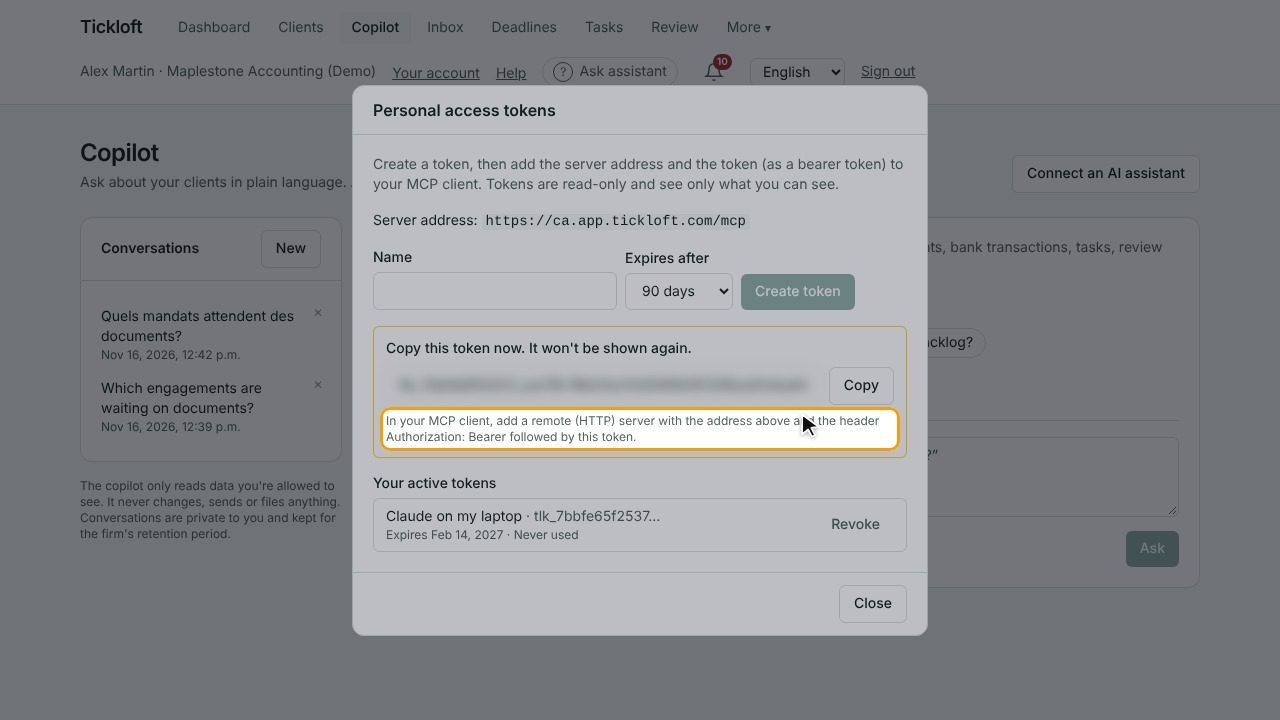
- On the Copilot page, choose Connect an AI assistant, name a token and choose when it expires (up to a year). Copy the token: it is shown once.
- In your MCP client, add a remote (HTTP) server with the address shown and the header
Authorization: Bearer <token>.
The assistant sees only what you can see, with your role and client restrictions. It can list clients, deadlines, engagements, checklists, documents, tasks, client questions and the digest. It cannot change, send or delete anything. Each call is recorded in the audit log. Revoke a token at any time from the same window; turning the server off stops every token.
Client information read through a token goes to the assistant you connect, under that assistant's terms. Check that your privacy notices cover it before you turn the server on.