You can write to your accountant right from the portal and keep every conversation about a business in one place. The notifications bell tells you when something new needs your attention.
Start a new conversation
- Go to My businesses and open the business.
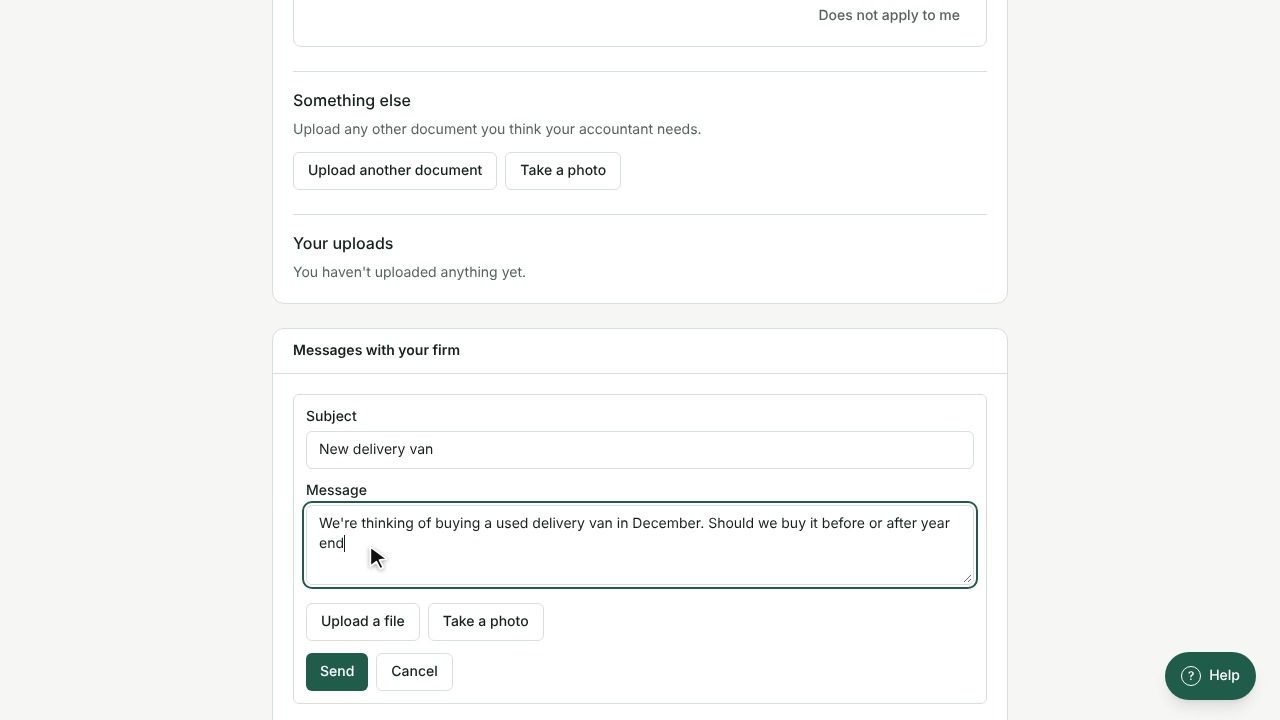
- Scroll to Messages with your firm and select New message.
- Enter a Subject and your Message.
- Select Send.
Your accountant sees your message in their workspace and replies in the same conversation.
Reply to your accountant
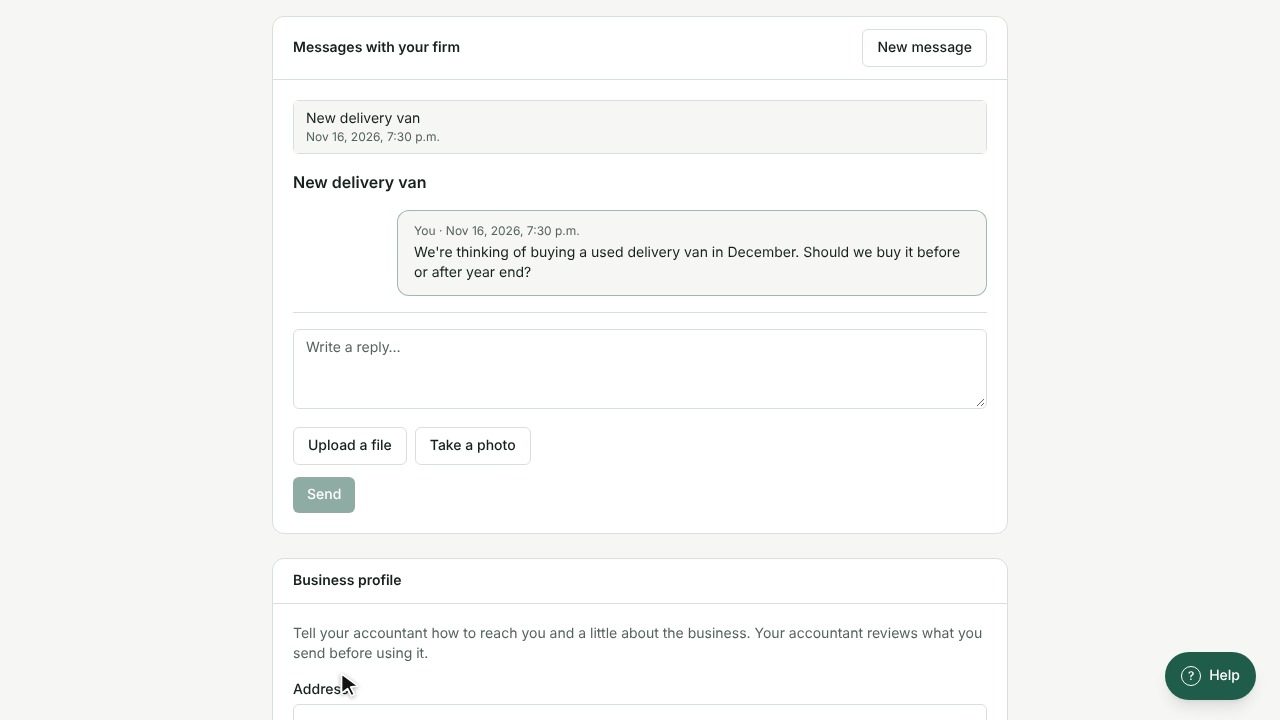
- In Messages with your firm, select the conversation. Conversations with unread messages show a badge such as 2 new.
- Read the latest messages. New ones appear under New.
- Type in the Write a reply… box and select Send.
If a conversation shows Reply requested, your accountant is waiting for an answer from you. If it shows Closed, start a New message to continue.
Attach files
- To attach a file you already uploaded, select Attach files and tick the files you want.
- To send a new file with your message, select Upload a file, or Take a photo on your phone, then attach it.
- Files appear under Attached files in the conversation.
Tip: If the file is one of the documents your accountant requested, upload it from the Documents section instead so it's matched to the right item.
Email notifications
When your accountant writes to you, you're notified in the portal and by email. Open the portal and sign in to read the reply.
The notifications bell
The bell at the top of every page shows what's new, such as:
- New message from your accountant
- Document reminder for items still needed
- Deadline reminder for an upcoming due date
To use it:
- Select the bell. A number shows how many notifications you haven't read.
- Unread items have a dot next to them.
- Select a notification to open the related page. It's then marked as read.
When there's nothing waiting, the bell shows Nothing new.