When your accountant shares a report with you, it appears on your business page in the portal. You'll also find a quick summary of where your files stand.
Open a shared report
- Go to My businesses and open the business.
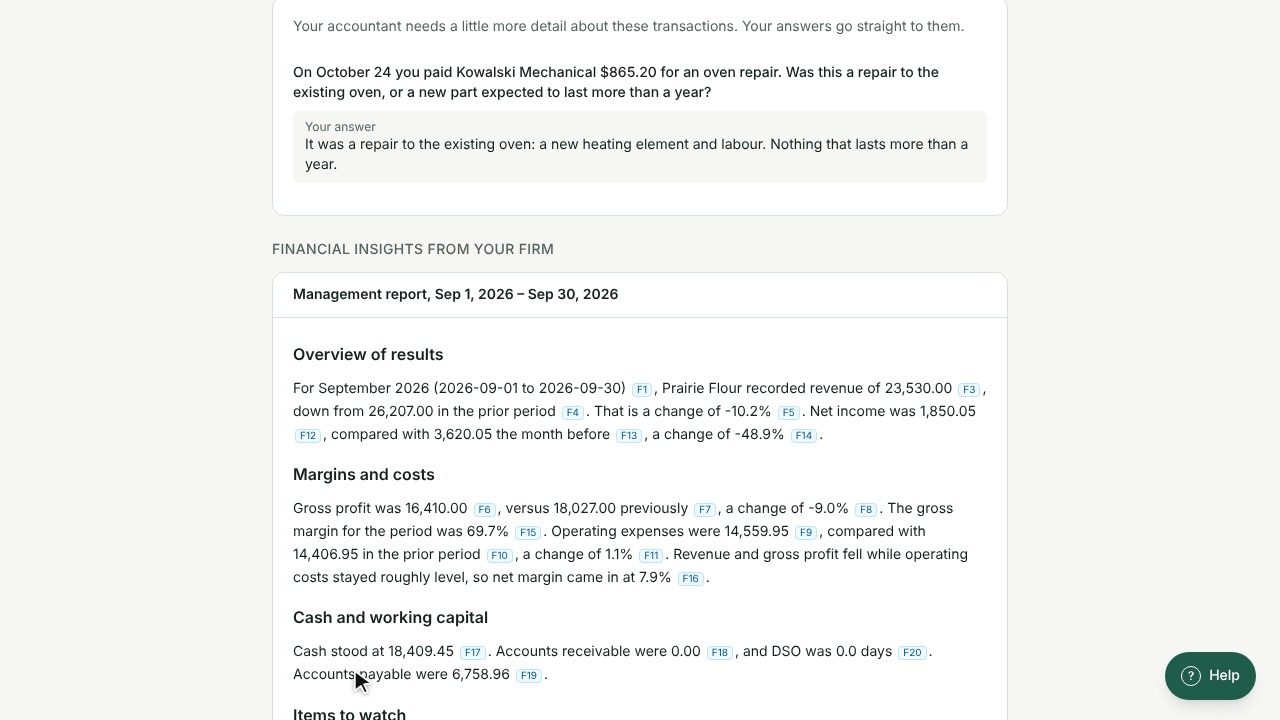
- Look for Financial insights from your firm. This section only appears once your accountant has shared at least one report.
- Each report has a title that tells you what it is and the period it covers, for example:
- Management report, with the start and end dates
- Recommendations, with the start and end dates
- Read the summary at the top, then the tables below it.
- At the bottom, Shared shows the date your accountant shared the report.
Tip: Your accountant reviews every report before sharing it. You only see reports they chose to share with you.
Ask a question about a report
- Scroll to Messages with your firm on the same page.
- Select New message.
- In the Subject, mention which report and period you're asking about.
- Write your question and select Send.
Your accountant replies in the same conversation, and you're notified by email.
See where things stand
At the top of the business page, Where things stand gives a quick summary of each job your accountant is working on for you:
- A status such as Waiting for you, In progress, In review, Done or Not started
- Documents received, with a progress bar and how many documents are in, such as "3 of 5 documents received"
- How many required items are still needed
- The due date and how many days are left
If there's an upcoming deadline, you'll also see a line with Next deadline:, the date and how many days remain.
Tip: Waiting for you usually means your accountant needs documents or an answer from you. Check Documents and Messages with your firm on the same page.