The Knowledge base holds your firm's procedures, templates and policies. The inbox assistant cites these articles in draft replies, and the Copilot can answer questions from them, so your firm's own guidance shapes every answer.
Find the knowledge base
Select Knowledge in the main navigation. The page lists your Articles with their Title, Type, Version and the date they were Added. Everyone at the firm can read and search them; owners, admins and reviewers can add, archive and delete articles.
Add an article
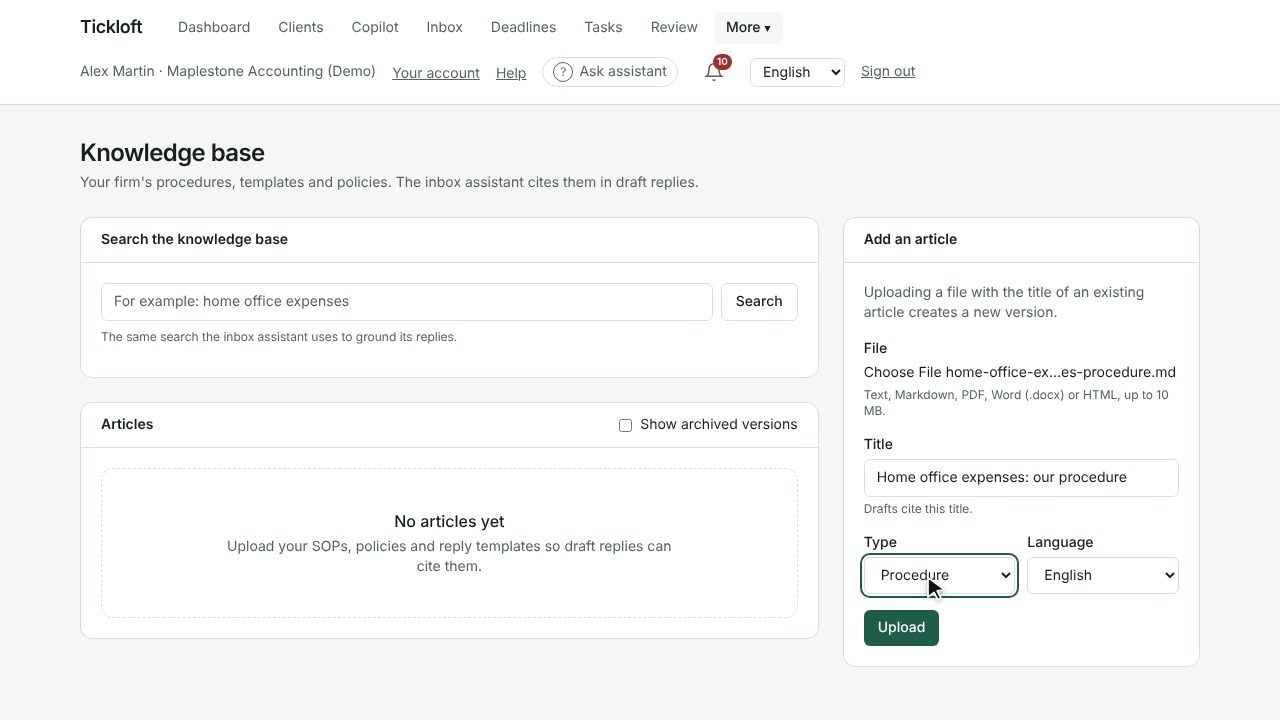
- On the Knowledge page, go to Add an article.
- Choose a File: text, Markdown, PDF, Word (.docx) or HTML, up to 10 MB.
- Enter a Title. Drafts cite this title, so make it clear and specific, for example "Home office expenses – client reply template".
- Choose a Type: Procedure, Template, Policy, Reference or Other.
- Choose the Language of the document.
- Select Upload.
Tickloft splits the text into passages so that the relevant part can be found and quoted. The list shows how many passages each article has.
Tip: If you serve clients in both languages, upload the English and French versions of the same guidance as separate articles and set the Language on each.
Update an article with a new version
To replace an article, upload the new file with exactly the same title as the existing article. Tickloft creates a new version and archives the old one.
- Open an article to see its Versions and its passages.
- Tick Show archived versions to list older versions alongside the current ones.
- Select Archive to retire an article that is no longer current without deleting it.
If you Delete an article, it and its passages are removed. Drafts that already cited it keep their citation text, so past replies remain explainable.
Check what drafts will find
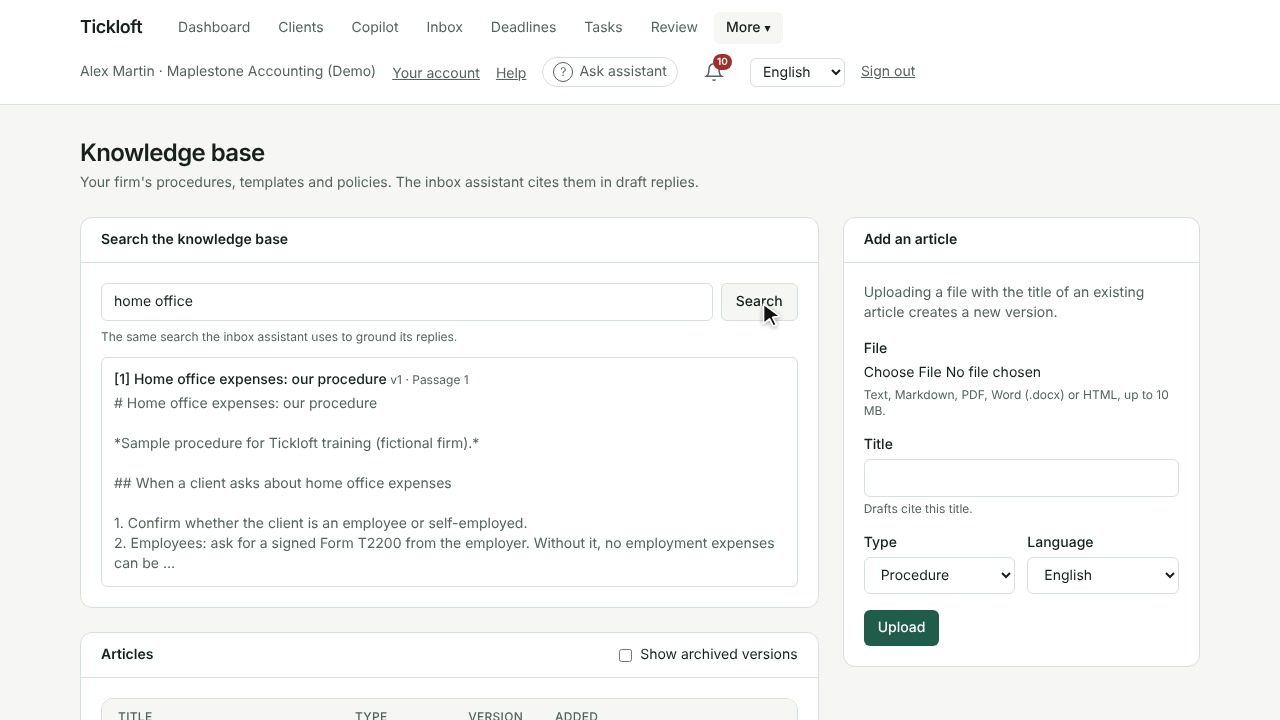
Use Search the knowledge base to test your articles. Type a topic, for example "home office expenses", and select Search. This is the same search the inbox assistant uses to ground its replies, so if nothing relevant comes up, the assistant won't find it either.
Results show the article title, version and passage number.
How drafts cite the knowledge base
When the inbox assistant drafts a reply to a client email, it looks up relevant passages in the knowledge base and in the client file. The draft lists them under Sources, so the reviewer can see exactly which article and version supported each point before approving.
- Knowledge base content is treated as reference information, never as instructions to the assistant.
- A draft is never sent until someone approves it in Review.
- The Copilot can also answer questions such as "What is our document retention policy?" from these articles and cites them as sources.
Keep your knowledge base useful
- Write one topic per article; shorter, focused articles produce clearer citations.
- Archive outdated procedures promptly so drafts don't quote them.
- Review your reply templates when rules or firm policies change, then upload them as new versions.