Your firm's plan sets how many people can use Tickloft, how many active clients you can manage and which features are included. Owners and admins can see the plan and usage; only the firm owner can change the plan or the payment method.
Find your plan
Open Firm settings and select Plan and billing. Under Your plan you see:
- The Current plan and its status, such as Trial, Active or Past due.
- When it Renews on or Ends on.
- Seats used and Active clients against your plan's limits.
Staff and reviewers don't have access to this page. If they reach a plan limit, Tickloft tells them, and an owner or admin can follow up here.
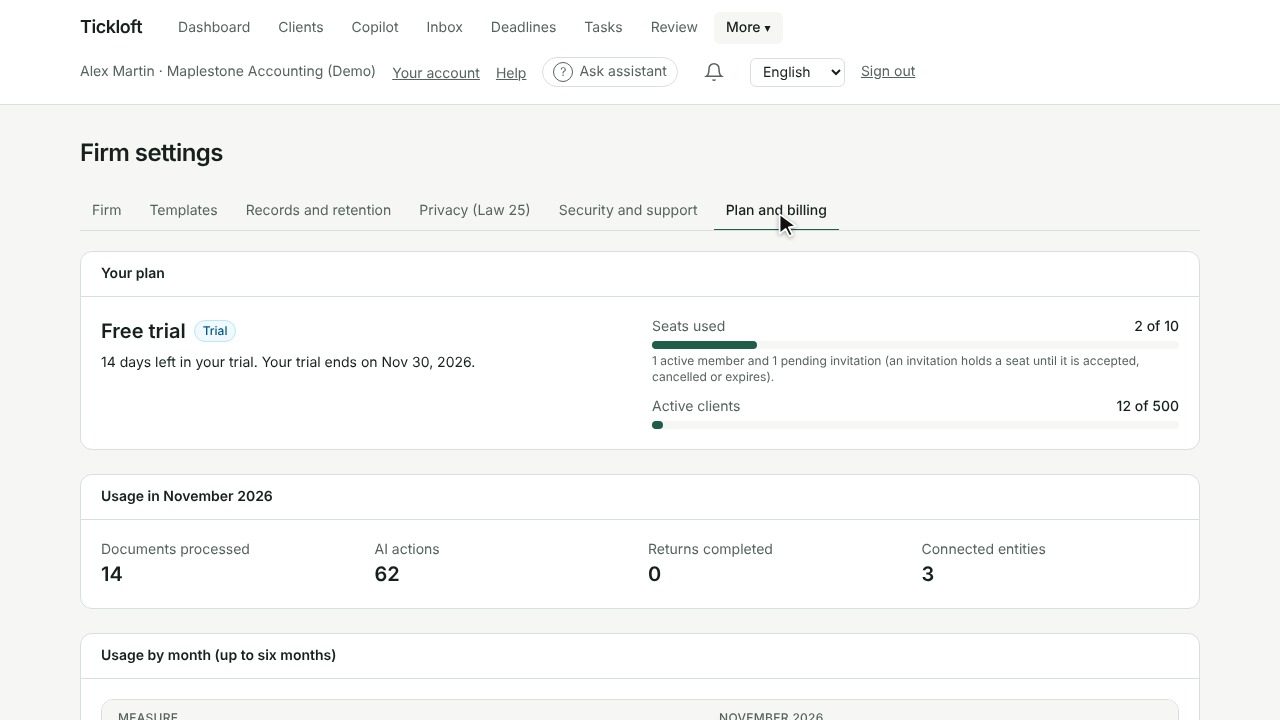
Your free trial
New firms start on a Free trial. A banner shows how many days are left, with a Plans and billing link.
When the trial ends, AI features and adding users or clients are paused until the owner chooses a plan. Your records stay available: you can still read them, decide review items and export data.
Compare plans
Pricing is being finalised. For now the section is called Plans: each card shows its seat and active-client limits and its features, without a price, and plans can't be bought online. Contact Tickloft to choose or change a plan. Once prices are published, the section works as described below.
Under Choose a plan, each card (Starter, Professional, Enterprise) shows its price, its seat and active-client limits and its features, such as the inbox assistant, the Copilot, the firm knowledge base, shared mailboxes or single sign-on. Pick USD or CAD with Currency.
- Some plans are priced per seat, with a minimum number of seats; some are Billed annually.
- A card that shows Contact us instead of a price can't be bought online. Contact Tickloft to arrange it.
Understand seats and active clients
- Seats count active team members and pending invitations. Deactivating a member on the Team page or cancelling an invitation frees a seat.
- Active clients count clients across the whole firm.
When a limit is reached, Tickloft shows "Your plan's limit is reached" and a See plans link. Choose a larger plan, or free up seats or clients.
Change plan or pay online
Only the firm owner can do this.
- In Choose a plan, set the number of Seats if the plan is priced per seat.
- Select Choose this plan. You're taken to a secure payment page to enter your payment details.
- When you return, Tickloft shows a thank-you message. Your plan updates as soon as the payment is confirmed.
To update the payment method or manage the subscription later, the owner selects Manage billing and payment method.
If you see "Online payment isn't set up in this environment yet", online payment isn't available for your account; contact Tickloft support to change your plan.
If a payment fails
The plan shows Past due and a banner gives the date until which AI features stay on. The owner should update the payment method with Manage billing and payment method before then. After that date, AI features and adding users or clients are paused, but your records stay available.
Check usage and invoices
- Usage in the current month shows Documents processed, AI actions, Returns completed and Connected entities.
- Usage over the last six months shows each measure, including pages read, notifications sent, active users, reports drafted and document storage. This month by client breaks usage down per client.
- Invoices lists every invoice with its status. Select View to open one.
Tip: Usage is counted from your records, so a retried task is never counted twice.