Once a client's QuickBooks Online or Xero is connected (or their bank statements are imported, see Connecting accounting software), Tickloft helps with the routine bookkeeping and the month-end close. Every change to the books goes through the review queue first.
Code transactions
Open the client and select the Bookkeeping tab. The counters at the top show what is To code, Waiting for review, Decided and Missing a receipt.
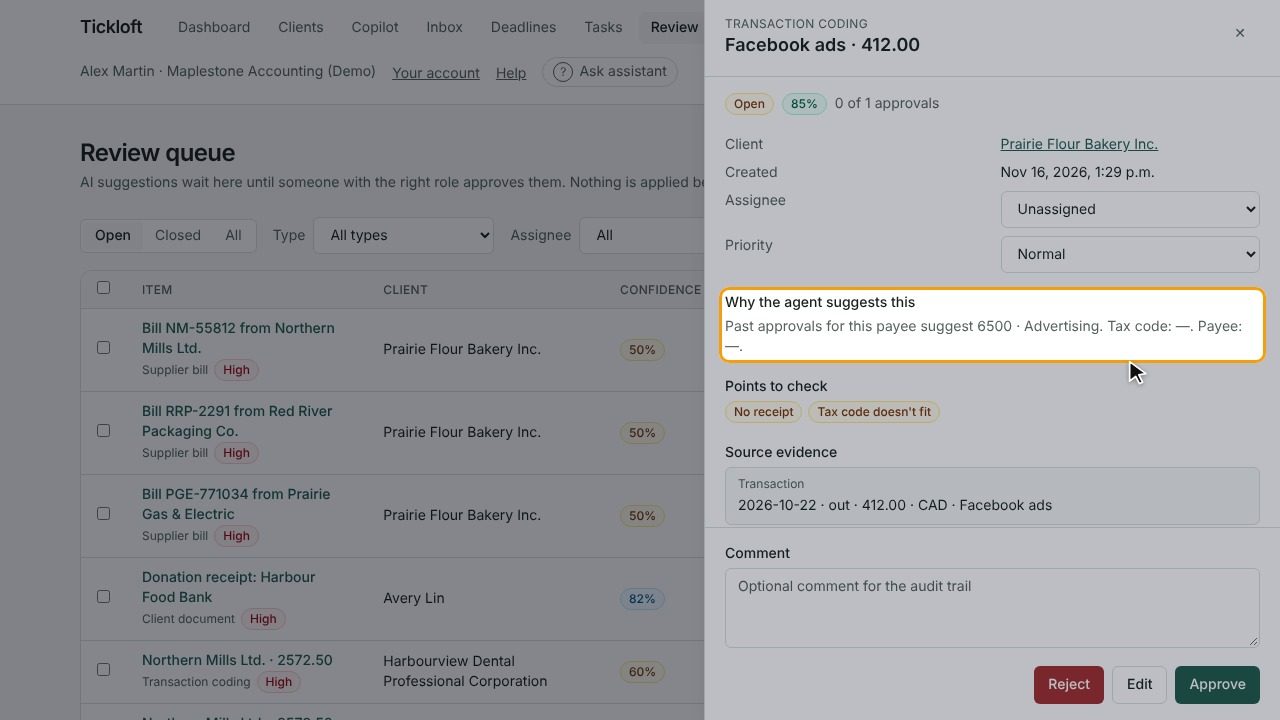
- Select Suggest codings. Tickloft suggests an account, tax code and payee for transactions that are uncategorized, on a suspense account or missing details.
- The suggestions go to the Review queue. Select Open the review queue to decide on them.
- Approve, edit or reject each suggestion.
Each suggestion says where it came from: a firm Rule, Past approvals for the same payee, or the AI model.
The tabs on the Bookkeeping page let you follow the work: To code, Unmatched, In review, All, Write-backs, Rules, Duplicate contacts and Settings.
Match receipts and bills
Open a transaction to see Receipts and bills that could support it. A match needs the exact amount; the date, payee and reference raise the score. Select Confirm or Reject for each candidate.
The Unmatched tab lists money out with no receipt or bill matched yet, and Unmatched items by age shows how long they've been waiting. Above the amount set in Settings, a missing receipt is flagged.
Teach Tickloft with rules
On the Rules tab, select Add rule to code recurring transactions the same way every time, for example everything whose description contains "petro canada". Rules apply before the AI model.
Tickloft also creates learned rules after several identical approvals for a payee. A learned rule switches off when a reviewer corrects it.
Follow write-backs
Approved codings appear on the Write-backs tab with their status, such as Written to the ledger or Recorded (write-back off). If one fails, the reason is shown; owners, admins and reviewers can select Retry.
Reconcile a bank account
Open the client's Close tab and select Bank reconciliation.
- Select New reconciliation and enter the bank account, period and the statement's opening and closing balances.
- Select Upload statement (CSV) with the bank's export for that period.
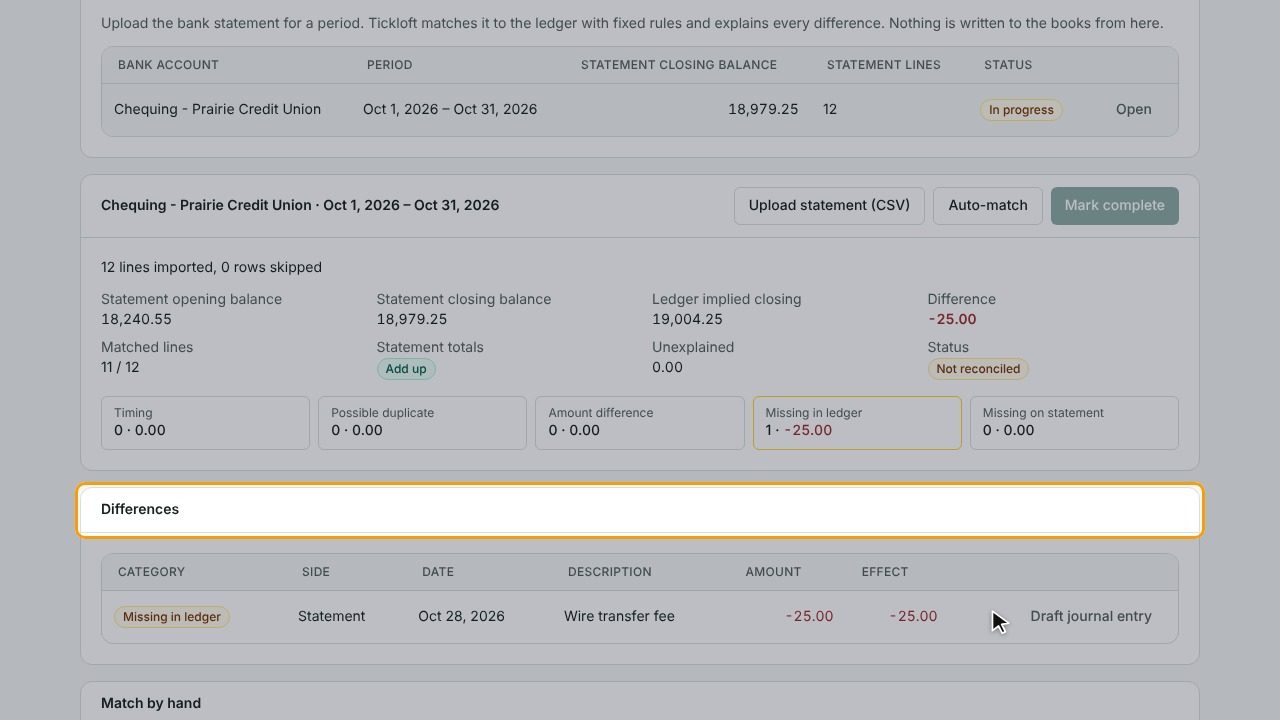
- Select Auto-match. Tickloft matches statement lines to the ledger with fixed rules.
- Use Match by hand for anything left, picking a statement line and the ledger entries that make it up.
- Review the Differences: timing, possible duplicates, amount differences, or items missing in the ledger or on the statement. Use Draft journal entry to correct one.
- When everything is reconciled, an owner, admin or reviewer selects Mark complete.
Nothing is written to the books from the reconciliation itself.
Match payments
On Payment matching, select Find matches after a sync. Tickloft proposes which open invoices or bills each payment settles. Confirm records the match in Tickloft only; it doesn't change the books.
Post journal entries through review
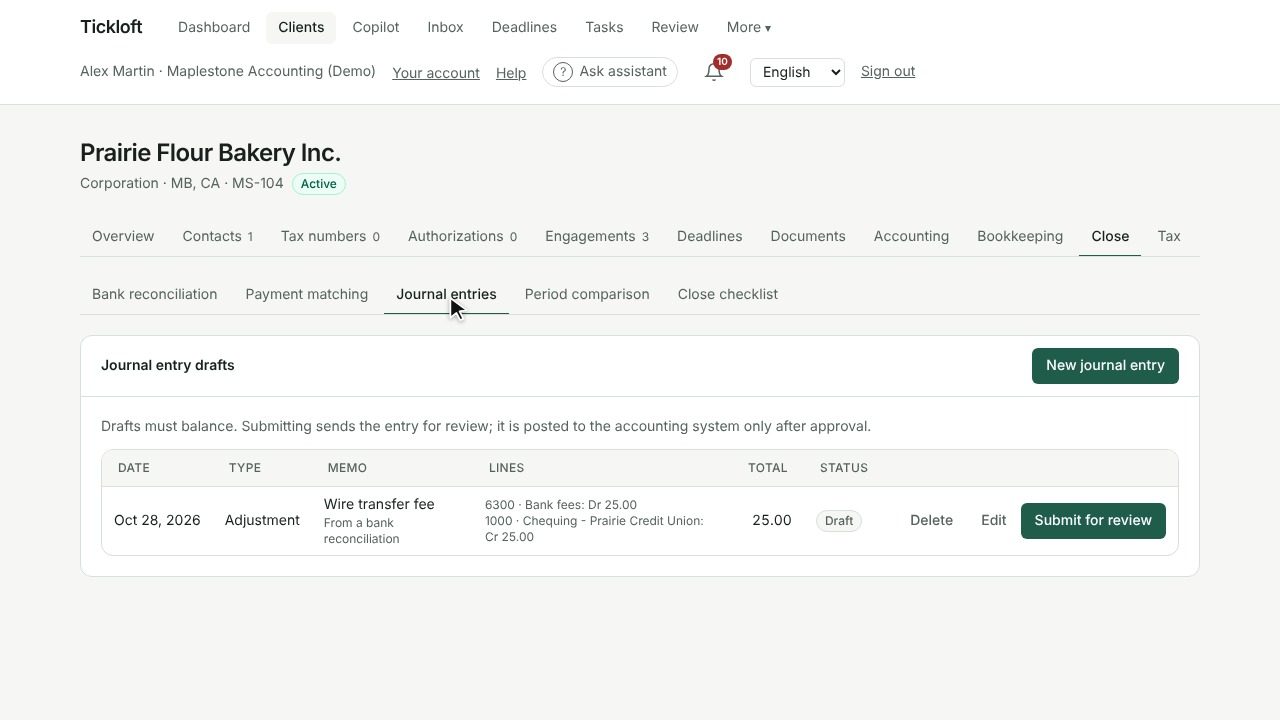
- On Journal entries, select New journal entry (or start from a reconciliation difference).
- Enter the date, type, memo and lines. The entry must be balanced.
- Select Submit for review.
The entry is posted to QuickBooks or Xero only after it is approved in the Review queue.
Compare periods
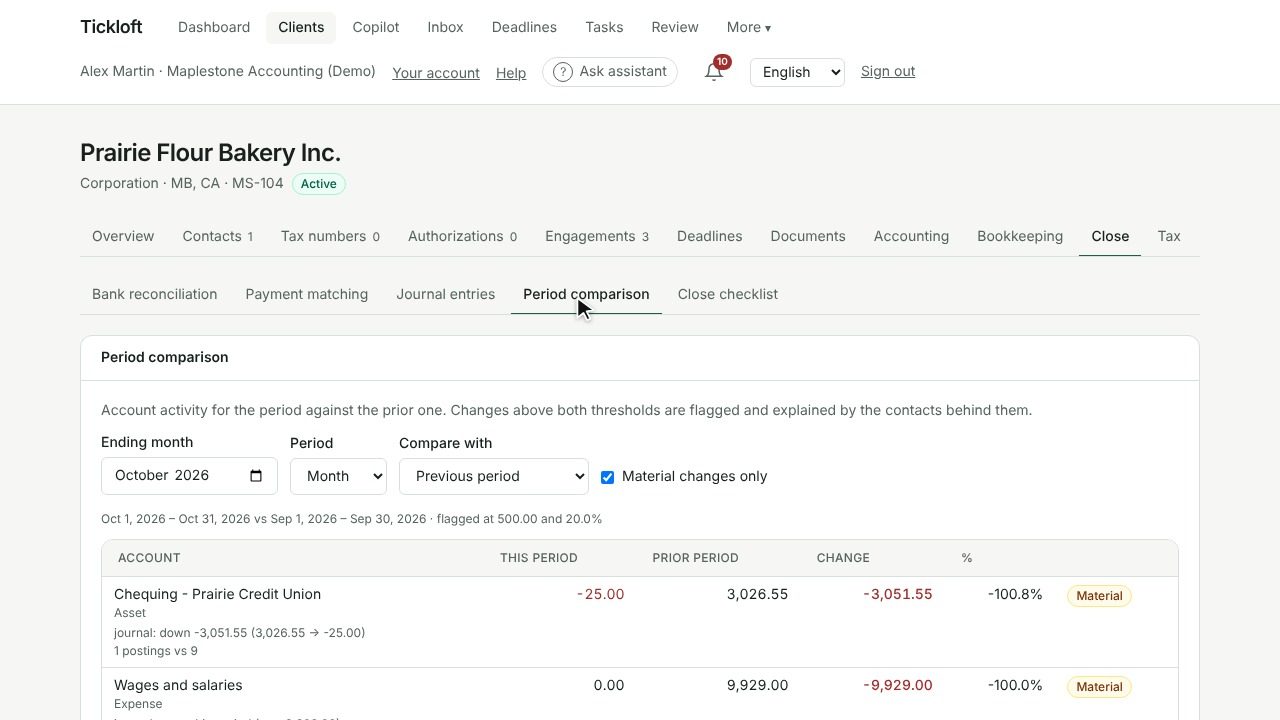
Period comparison shows account activity against the previous period or the same period last year, by month, quarter or year. Tick Material changes only to see just the significant changes, each explained by the contacts behind it.
Close the month
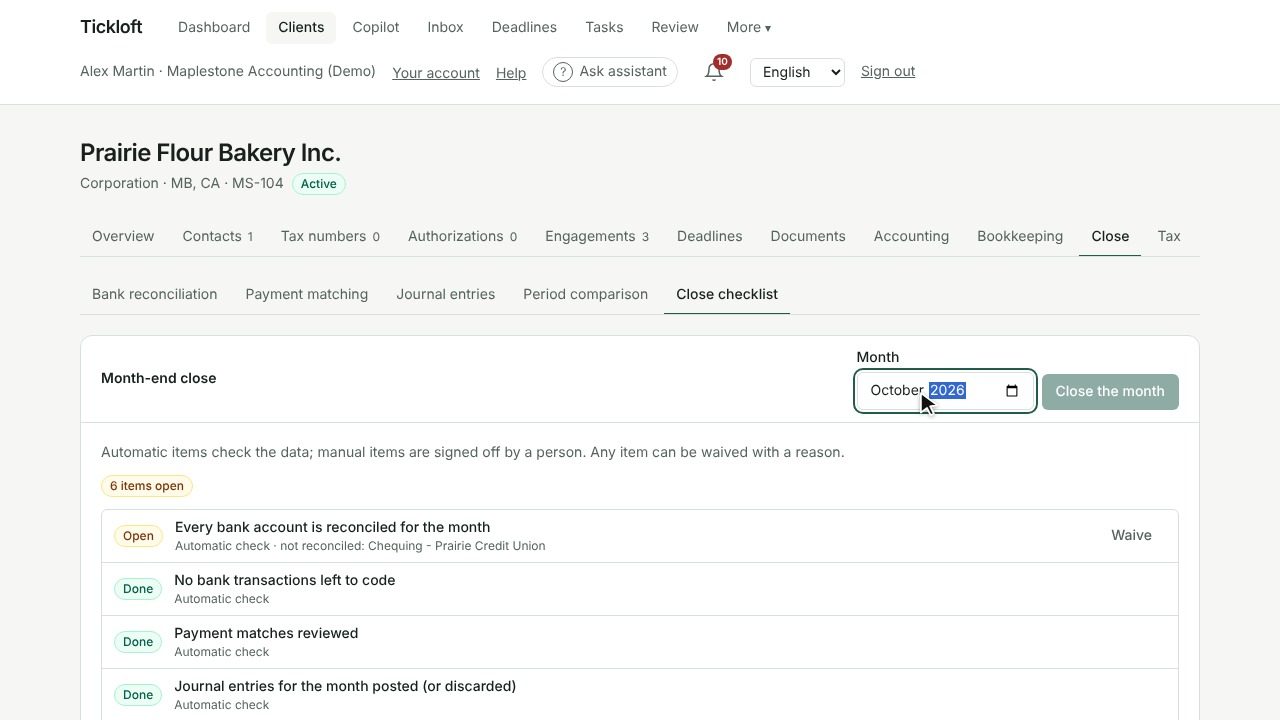
Close checklist brings it all together for the Month-end close:
- Automatic checks confirm the data, for example that bank accounts are reconciled, transactions are coded and review items are cleared.
- Manual items are signed off with Mark done.
- Any item can be set aside with Waive, with a reason.
When everything is done, an owner, admin or reviewer selects Close the month. Only owners and admins can Reopen a closed month.