Your accountant uses this client portal to collect your documents, share updates and keep in touch with you. Here's how to get in for the first time and find your way around.
Accept your invitation
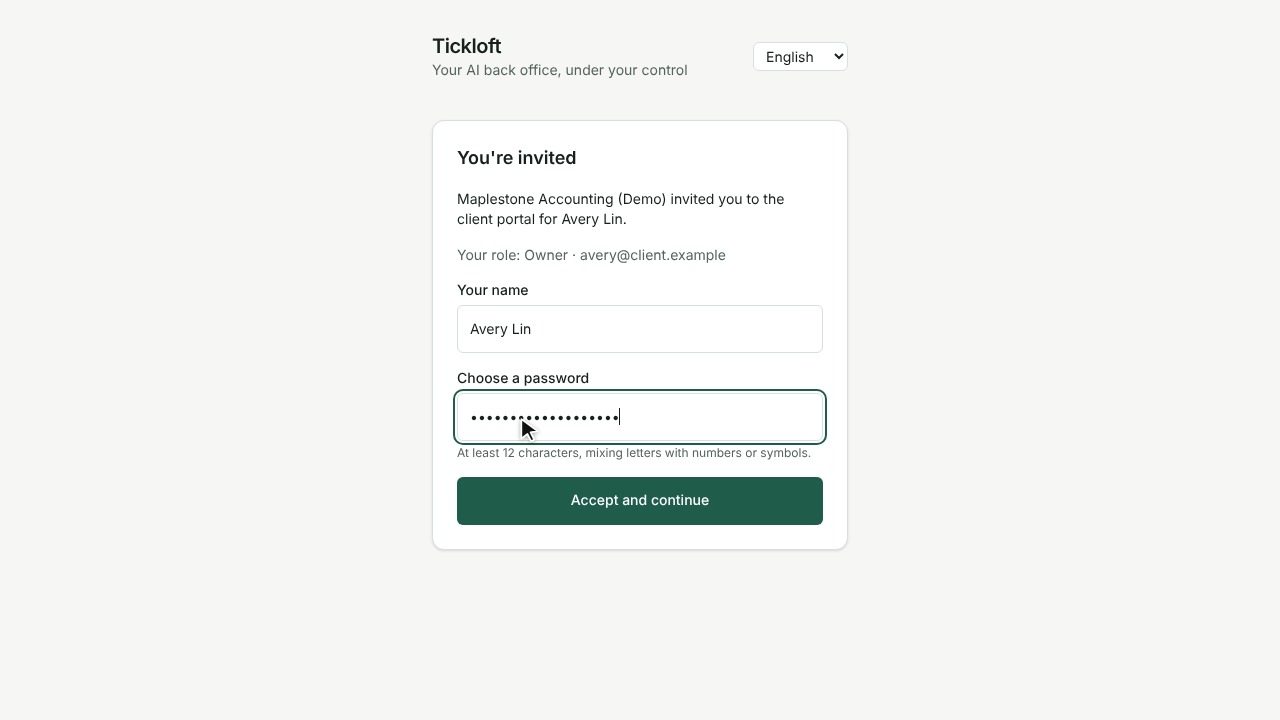
- Open the invitation link your accountant sent you. The link works only once and usually expires after 7 days.
- On the You're invited page, check the business name and your role.
- Enter Your name.
- Under Choose a password, enter at least 12 characters, mixing letters with numbers or symbols.
- Select Accept and continue. You're signed in and taken to My businesses.
If you already have a portal account with the same firm, the invitation simply asks for Your password to add the new business to your account.
Sign in
- Go to the client portal sign-in page. Its address ends in /portal/login.
- Enter your Email and Password, then select Sign in.
- If your email is used with more than one accounting firm, choose the firm you want.
Tip: The link Accounting firm staff sign in here is for your accountant's team, not for you. Always use the client portal page.
Turn on two-step verification (optional)
Two-step verification adds a code from your phone each time you sign in.
- Select Settings at the top of the page.
- Under Two-step verification, select Turn on.
- Open an authenticator app on your phone and scan the QR code.
- Can't scan? Select Can't scan? Enter a setup key instead and type the Setup key into your app, or use Open in authenticator app if you're on your phone.
- Enter the 6-digit Code your app shows, then select Confirm.
From now on, after your password you'll see Enter your verification code. Type the code from your app and select Verify.
To turn it off, go back to Settings, enter a current code and select Turn off.
Change your name or language
- In Settings, under Account, update your name and select Save.
- Switch between English and Français with the Language menu at the top of any page or in Settings.
Sign out
Select Sign out at the top of the page, especially on a shared or public computer.