Tickloft calculates every client's filing, payment, instalment and remittance deadlines from official rules, and turns them into alerts and tasks so nothing slips. This article covers deadlines, the calendar feed, tasks and workload.
See your deadlines
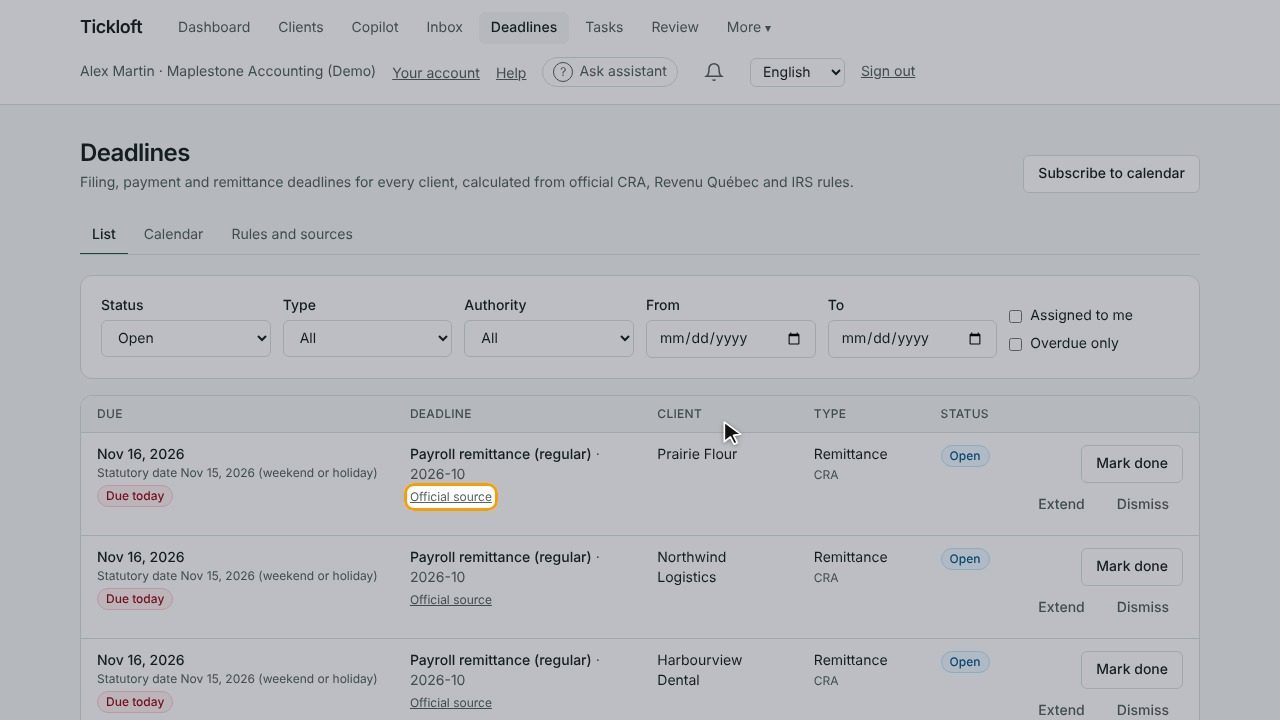
Open Deadlines in the main navigation. Dates come from the official CRA, Revenu Québec and IRS rules, applied to each client's profile, and move to the next business day when they fall on a weekend or holiday.
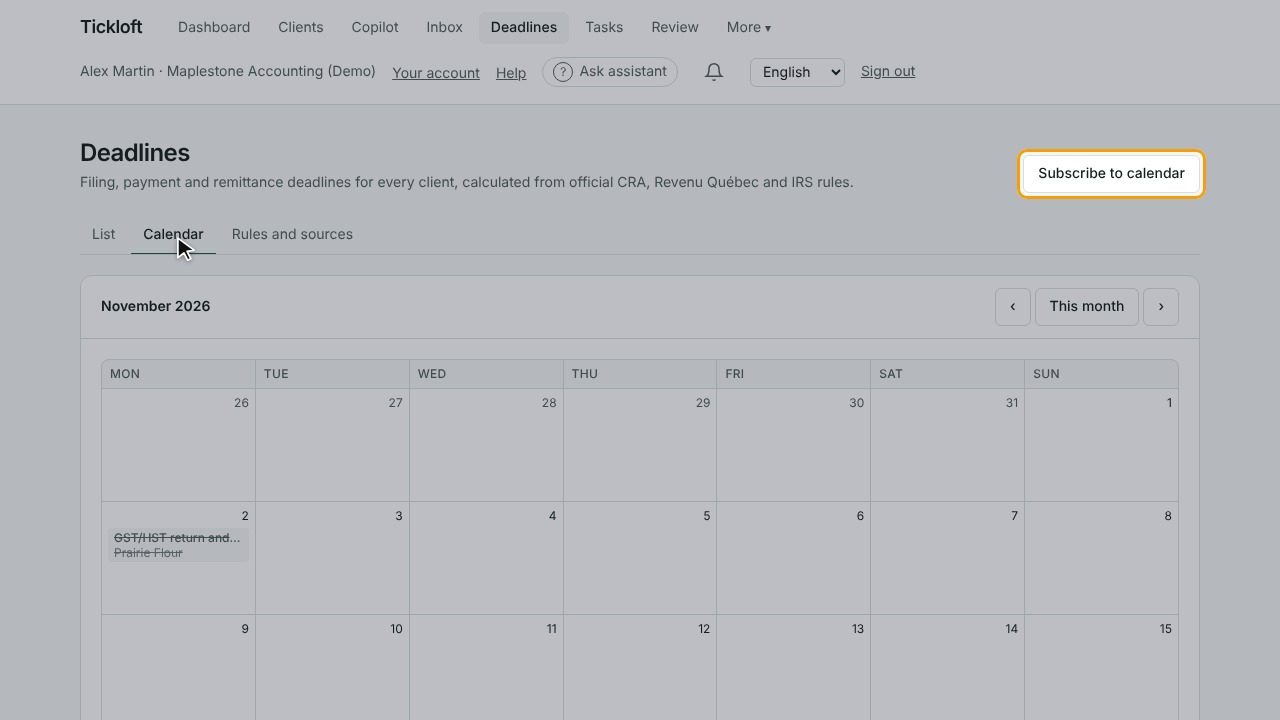
- List and Calendar show the same deadlines in two layouts.
- Rules and sources shows each rule, the official page it was checked against and when it was verified.
- Filter by status, type, authority and dates, or tick Assigned to me or Overdue only.
The Dashboard also lists deadlines in the next 14 days.
Keep deadlines accurate
Deadlines depend on the client profile: fiscal year-end, client type, province or state, and sales tax and payroll frequencies. On a client's Deadlines tab you can also:
- Fill in the Deadline profile with facts the rules need, such as instalments or payroll remitter type. Deadlines that depend on these appear only once they're set.
- Select Recalculate after a profile change.
- Select Add a firm deadline for anything the official rules don't cover, such as internal targets.
For Québec clients, Tickloft adds the Revenu Québec deadlines: the TP-1 return and instalments, the CO-17 return, balance (two months after year end for every corporation) and instalments, the TP-646 trust return, and the RL-1, RL-3 and RL-31 slips. Tick Rents dwellings in Québec in the deadline profile for landlords who issue RL-31 slips.
Owners, admins and reviewers can change the deadline profile and add firm deadlines.
Act on a deadline
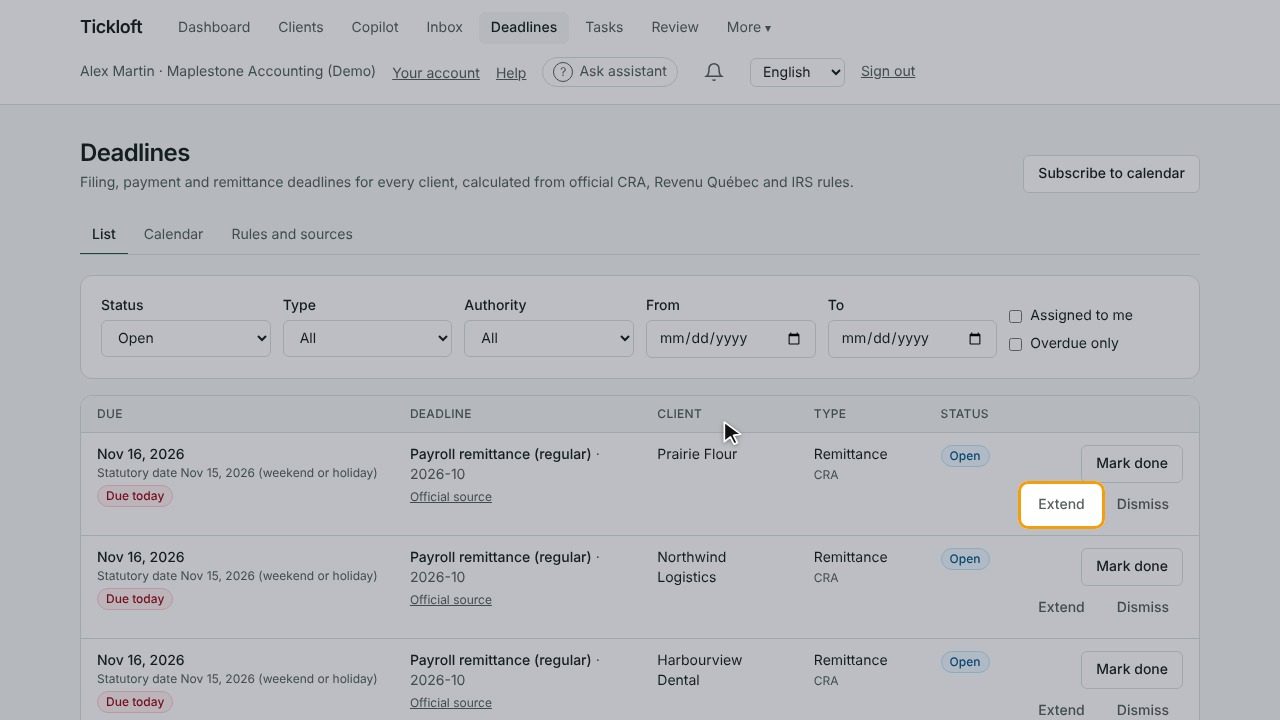
- Mark done when the filing or payment is complete, and Reopen if needed.
- Extend records an extension or an agreed later date, with a reason. The original date stays visible.
- Dismiss removes a deadline that doesn't apply, such as a nil return. A reason is required here too.
Every change is recorded in the audit log.
Get alerts and preparation tasks
People assigned to a deadline get an in-app alert at each lead time, and a preparation task is created ahead of each deadline.
Owners and admins set the timing in Firm settings → Firm, under Deadline alerts and tasks: Alert days before the due date (for example 14, 3, 0) and Create the task this many days before.
On an engagement, the Completeness card shows whether the required documents are in and the engagement is Ready to prepare.
Subscribe in your calendar
- On the Deadlines page, select Subscribe to calendar.
- Under Deadlines, choose Assigned to me or All I can see.
- Select Create link and copy it right away: it is shown only once.
- Add it to your calendar. In Google Calendar, use Other calendars, then From URL. In Outlook, use Add calendar, then Subscribe from web.
Anyone with the link can see the deadlines in it, so keep it private. Select Revoke to turn off a link you no longer use or that may have leaked.
Manage tasks
Open Tasks to see your work.
- Switch between My tasks and Everyone, and tick Show completed to include finished work.
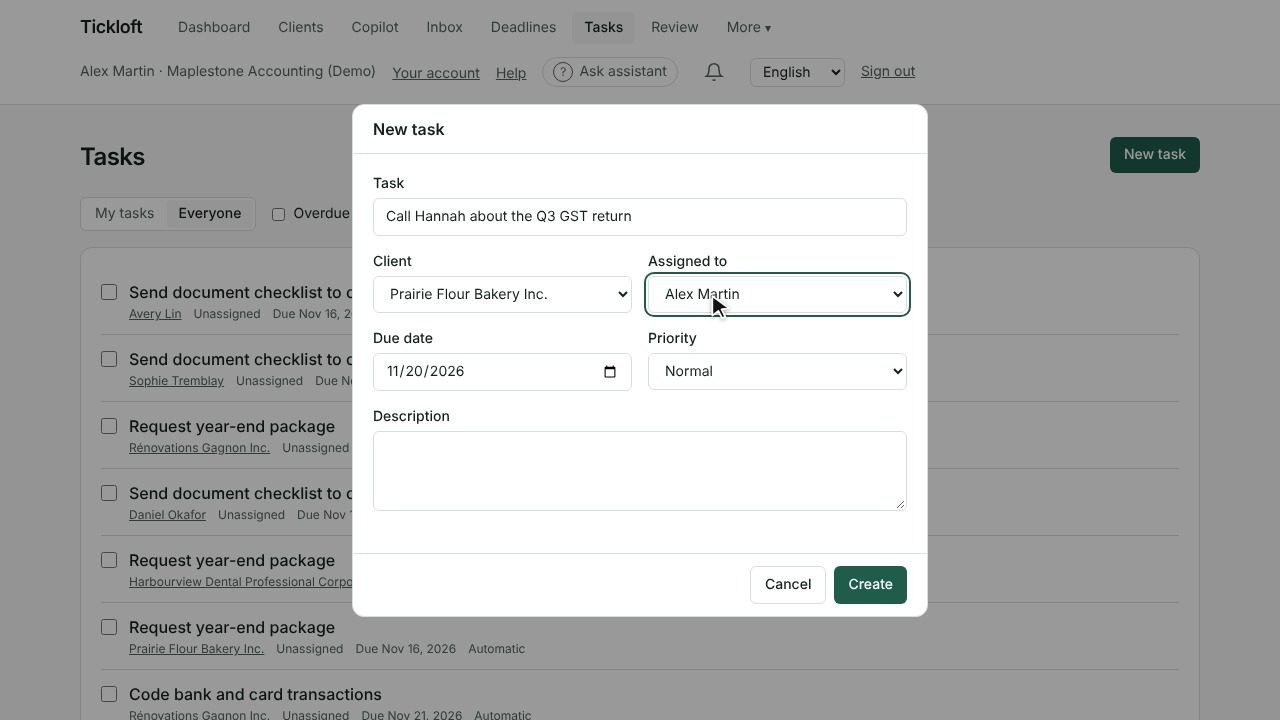
- Select New task and fill in the task, description, client, Assigned to, due date and Priority.
- Select Mark done when finished, or Reopen a task.
Tasks created by Tickloft, from engagement templates or upcoming deadlines, are labelled Automatic. You can also turn a Copilot answer into a task. Each client's Tasks tab shows the tasks for that client.
Balance the workload
- Governance → Workload (owners, admins and reviewers) shows each person's engagements, open and overdue tasks, review items and assigned clients. Use Reassign to move someone's engagements, and optionally their open tasks, when they're away or overloaded.
- Team → Capacity (owners and admins) compares each person's load with their Weekly capacity, with tasks due in each of the next four weeks.
Tip: When reassigning work on restricted clients, tick the option to give the new person access to those clients.