This article walks you through your first sign-in and the main parts of Tickloft. It takes about five minutes.
Use the right sign-in page
Firm users (owners, admins, reviewers and staff) sign in at /login, on the page titled Sign in to Tickloft. Your clients use a separate page, the Client portal, at /portal/login.
A common mistake is opening the client portal and trying to sign in there with a firm account. If the page says Sign in to your client portal, you're on the wrong page: follow Accounting firm staff sign in here.
Accept your invitation
- Open the invitation link your firm administrator sent you. It works once and expires after 7 days.
- Enter your name and choose a password, then select Accept invitation.
- Set up two-step verification (see below). You then land on the Dashboard.
If the link has expired or was cancelled, ask your administrator for a new one.
Set up two-step verification
Two-step verification is required for every firm user. You set it up once, the first time you sign in.
- Install an authenticator app on your phone, such as Google Authenticator, Microsoft Authenticator or 1Password.
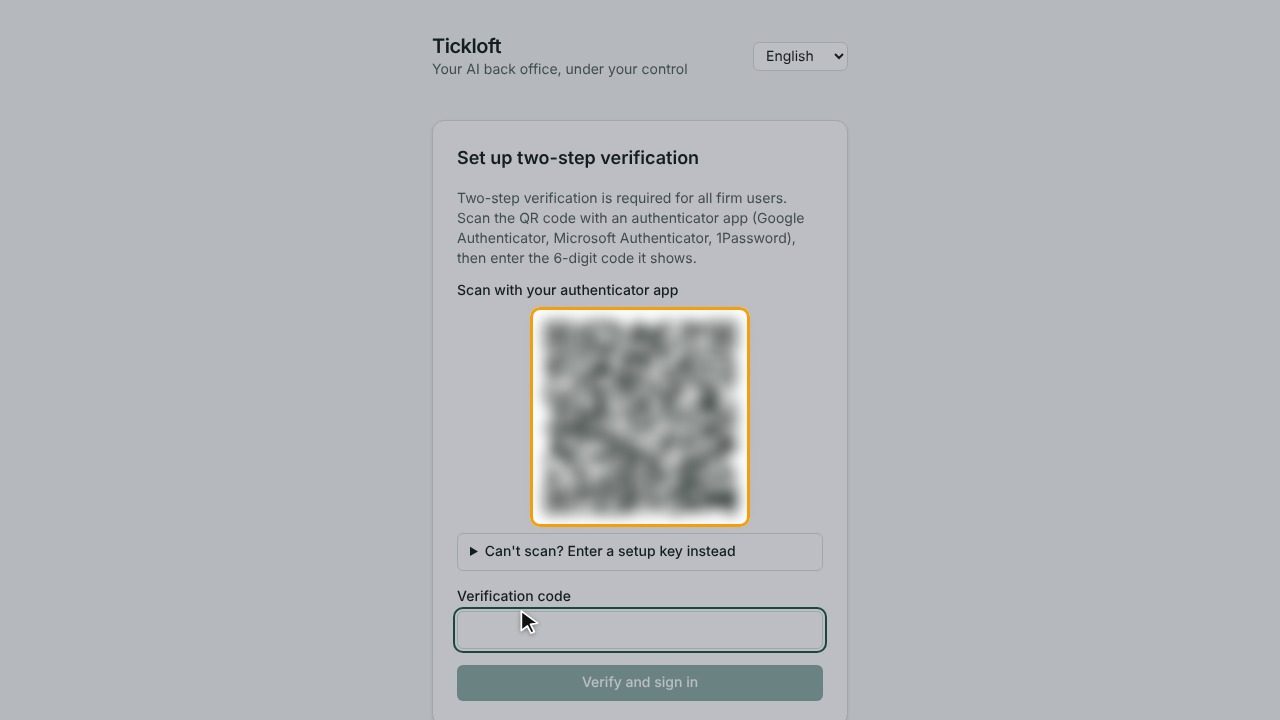
- On the Set up two-step verification screen, scan the QR code with the app.
- Enter the 6-digit code the app shows and confirm.
Can't scan? Enter a setup key instead opens a Setup key you can type into the app. On a phone, Open in authenticator app adds the account directly.
Sign in
- Go to /login and enter your Email and Password, then select Continue.
- Enter the 6-digit Verification code from your authenticator app and select Verify and sign in.
If your firm uses single sign-on, enter your work email, then choose Sign in with single sign-on and continue with your firm's identity provider.
Understand your role
What you see depends on your role. Each person has one role, set on the Team page.
- Owner: everything, including billing, single sign-on, support access, managing other owners and approving deletions.
- Admin: firm settings, team members (except owners), approval policies, templates, retention and exports.
- Reviewer: creates and manages clients and engagements, connects accounting systems, invites clients to the portal and approves review items.
- Staff: day-to-day work on the clients they can see: documents, tasks, contacts and messages. Staff can only approve review items if an approval policy allows it.
Restricted clients are visible only to owners, admins and the people assigned to them.
Find your way around
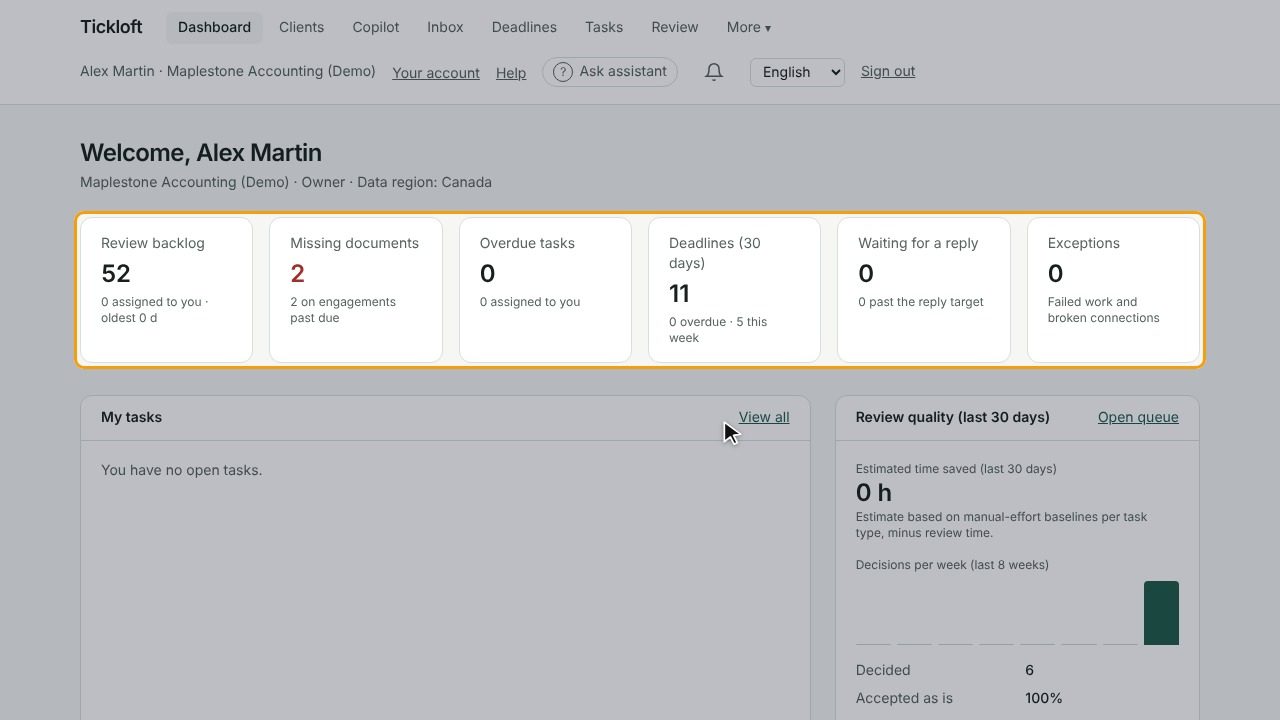
The main navigation runs across the top of the page:
- Dashboard: your review backlog, missing documents, overdue tasks, upcoming deadlines, clients waiting for a reply and exceptions.
- Clients: every client you can access, and each client's full record.
- Copilot: ask questions about your clients in plain language. Answers cite their sources and never change anything.
- Inbox: client email from connected mailboxes, linked to clients, and your firm's forwarding address for client documents.
- Deadlines: filing, payment and remittance dates for every client.
- Tasks: your tasks and your team's.
- Review: AI suggestions waiting for a decision. Nothing is applied until someone approves it.
- Knowledge: your firm's procedures, templates and policies.
- Search: find documents across your clients. If you don't see it, it isn't turned on for your firm.
- Governance: approval policies, agent activity, workload and the audit log. Not shown to staff.
- Team and Firm settings: shown to owners and admins only.
Switch language
Use the Language menu at the top right to choose English or Français. The whole app switches right away, and your choice is remembered on that browser.
Tip: The language your clients receive messages in is set separately, in each client's profile.
Sign out
Select Sign out at the top right. Always sign out on a shared computer.