The Payables tab gives you a client's accounts payable in one place: bills from the synced ledger and from extracted documents, their ageing, payment status and warnings. Tickloft prepares payment proposals only. Approval and release of payments happen in the payment platform under its own permissions; Tickloft never releases funds.
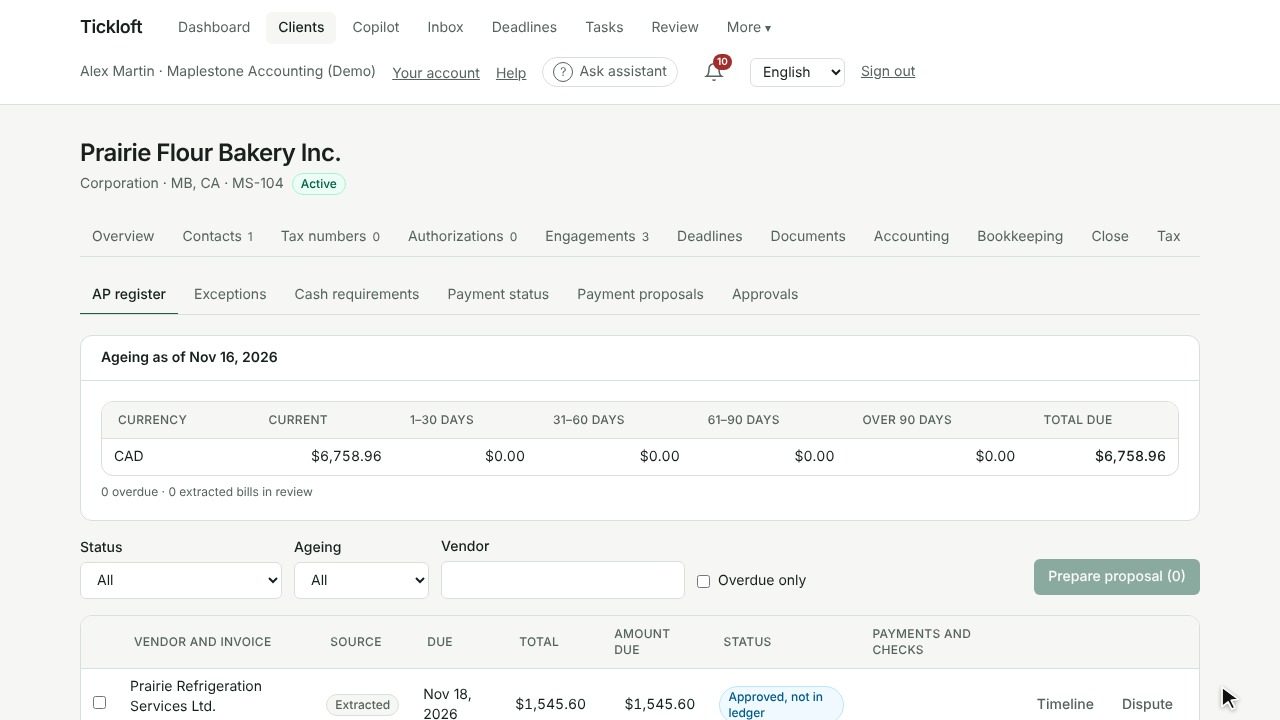
Review the AP register and ageing
Open the client, go to Payables, then AP register.
- The ageing summary shows amounts Current, 1–30 days, 31–60 days, 61–90 days and Over 90 days, with the Total due per currency.
- Filter by Status, Ageing or Vendor, or tick Overdue only.
- Each bill shows its source (Ledger or Extracted), due date, amount due and status, such as Open, Partially paid, Paid or Approved, not in ledger.
- Payments and checks shows platform payments, approvals, warnings and whether the bill is Disputed or already In a proposal.
- Select Timeline on a bill to see every payment event, in order.
Import payment status from the payment platform
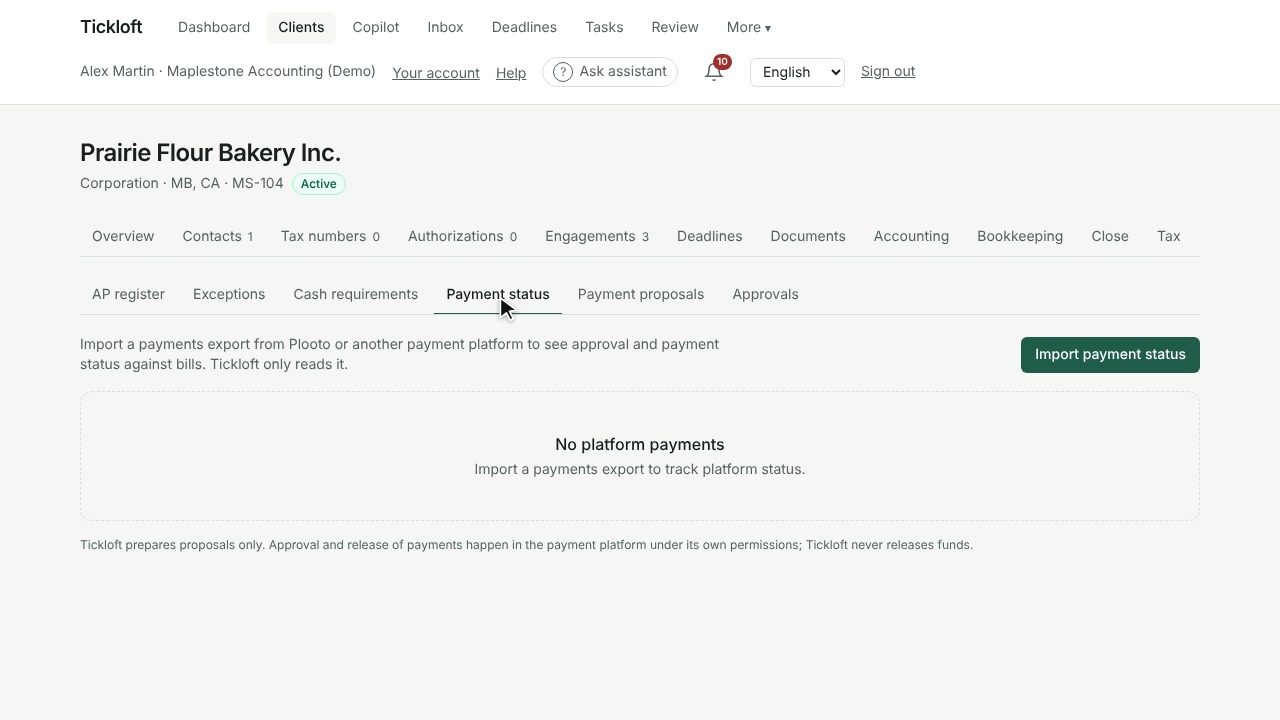
- Go to Payment status and select Import payment status.
- Choose the Platform (Plooto or Other platform) and the CSV File, then select Import.
The export needs a payment ID, status and amount; payee, invoice number, dates and approvers help matching. Bank account columns are refused. Tickloft only reads the file and reports how many payments were new, updated and matched to bills.
Payments are matched by invoice number, then by vendor and amount. To fix a match, select Change match, choose the Bill and select Match, or Unmatch.
Handle duplicate warnings
Tickloft warns about possible duplicates: the same invoice number more than once, two bills with the same amount close together, several payments for the same bill, overpayments, or a platform payment on a bill already paid in the ledger.
- Go to Exceptions and open Duplicate warnings.
- Check the bills against the source documents.
- Select Dismiss with a Note if it's not a duplicate. Use Scan again after new data arrives.
Other queues list Overdue bills, Unmatched payments, Partial payments, Disputed bills and 3-way match issues.
Dispute a bill
- In the AP register, select Dispute on the bill.
- Enter a Reason and confirm.
Disputed bills can't be added to a payment proposal until the dispute is resolved. To close it, go to Exceptions, open Disputed and select Resolve.
Check cash requirements
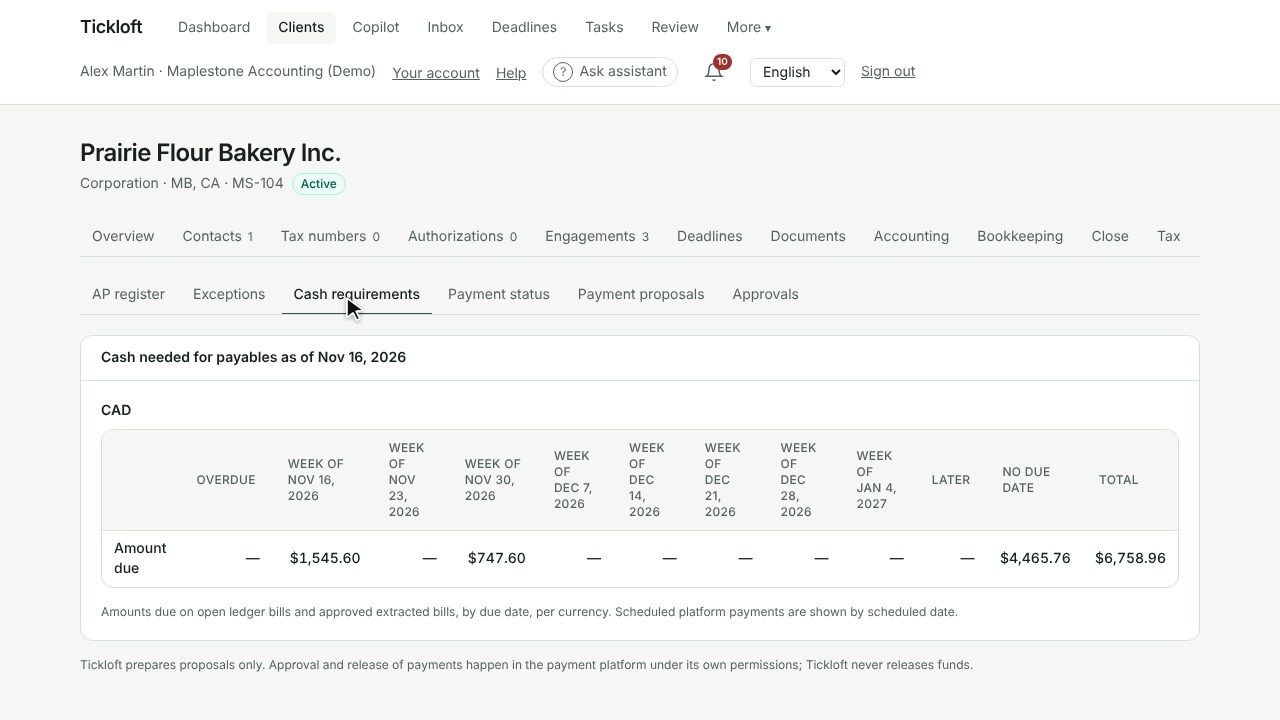
Cash requirements shows the cash needed for payables by week of due date, per currency, with Overdue, Later and No due date columns. It separates amounts that are disputed, extracted bills still in review and payments already Scheduled in platform.
Prepare a payment proposal
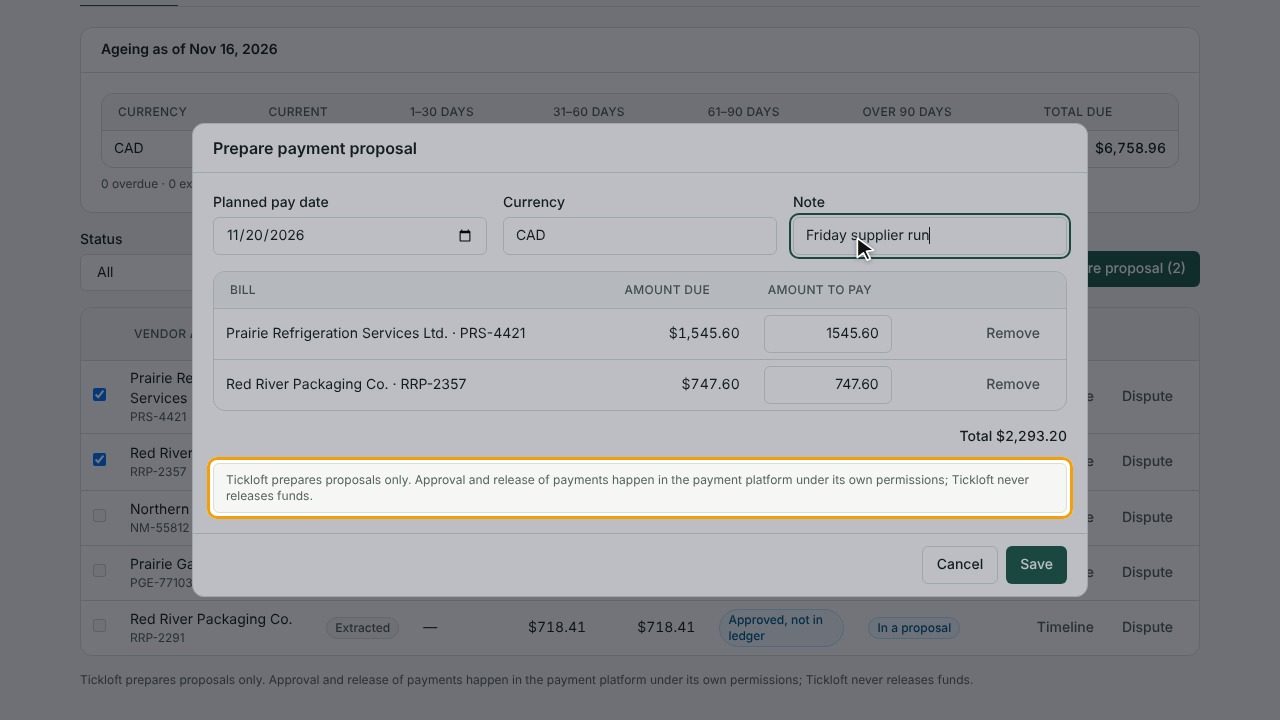
- In the AP register, tick the bills to pay and select Prepare proposal.
- Set the Planned pay date and Currency, adjust each Amount to pay if needed, and add a Note.
- Select Send to review.
A proposal can't include a disputed bill, a bill already paid or in another proposal, an extracted bill still in review, or bills in another currency.
Select Open review to follow it in Review. Who must approve, and how many approvals are needed, is shown under Approvals with the firm's Approval rules. Once approved, the proposal is Ready for platform; if rejected, it's Returned.
Export the proposal to the payment platform
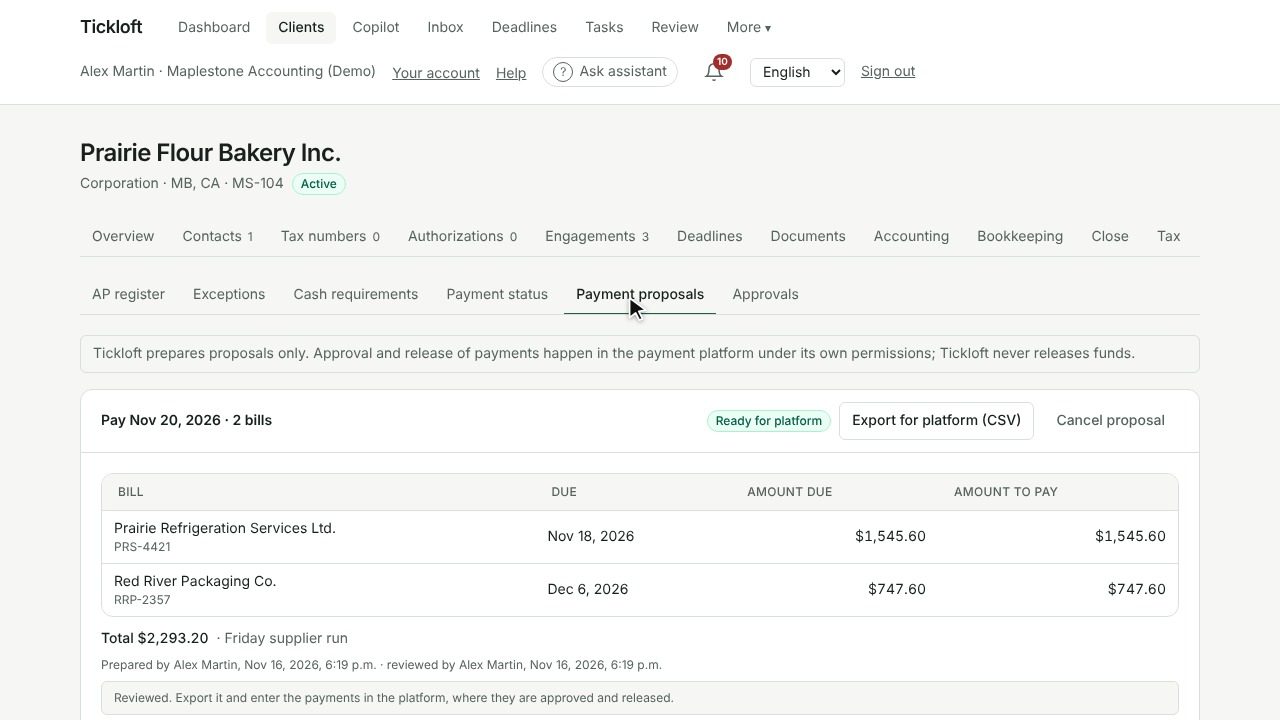
When a proposal is Ready for platform, select Export for platform (CSV) and enter the payments in the payment platform, where they are approved and released. Tickloft records each export.
Tip: The Approvals tab is the firm's review in Tickloft. It doesn't replace the approval step in the payment platform.