Tickloft reviews the payroll your client already runs elsewhere. You import the register exported from the payroll platform, and Tickloft checks it, compares it with earlier runs and reconciles it. Tickloft never calculates, runs or changes payroll: any correction is made in the payroll platform.
Who can see pay details
Everyone who can see a client sees the run totals. Payee lines and checks that name a payee are visible only to owners, admins and users who have payroll access.
To give someone payroll access, an owner or admin opens Team and ticks the box in the Payroll access column. Owners and admins show Always (role). You also need payroll access to import a register.
Import a payroll register
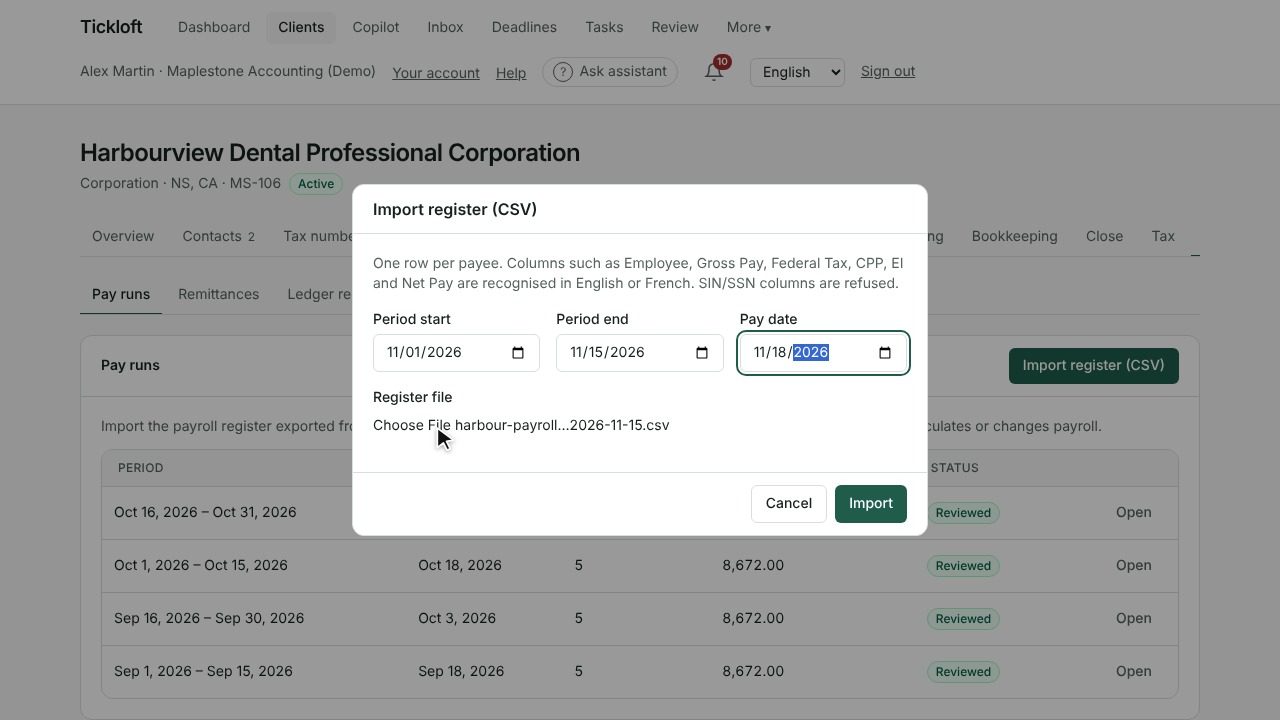
- Open the client and go to the Payroll tab, then Pay runs.
- Under Import register (CSV), enter the Period start, Period end and Pay date.
- Choose the Register file and select Import.
The file needs one row per payee. Columns such as Employee, Gross Pay, Federal Tax, CPP, EI and Net Pay are recognised in English or French. Columns with SIN or SSN are refused, so remove them before you export. Import notes list any columns ignored or rows that couldn't be read.
Tip: Importing again for the same run replaces it while it's still unreviewed. Once a run is reviewed, it's locked.
Review the checks
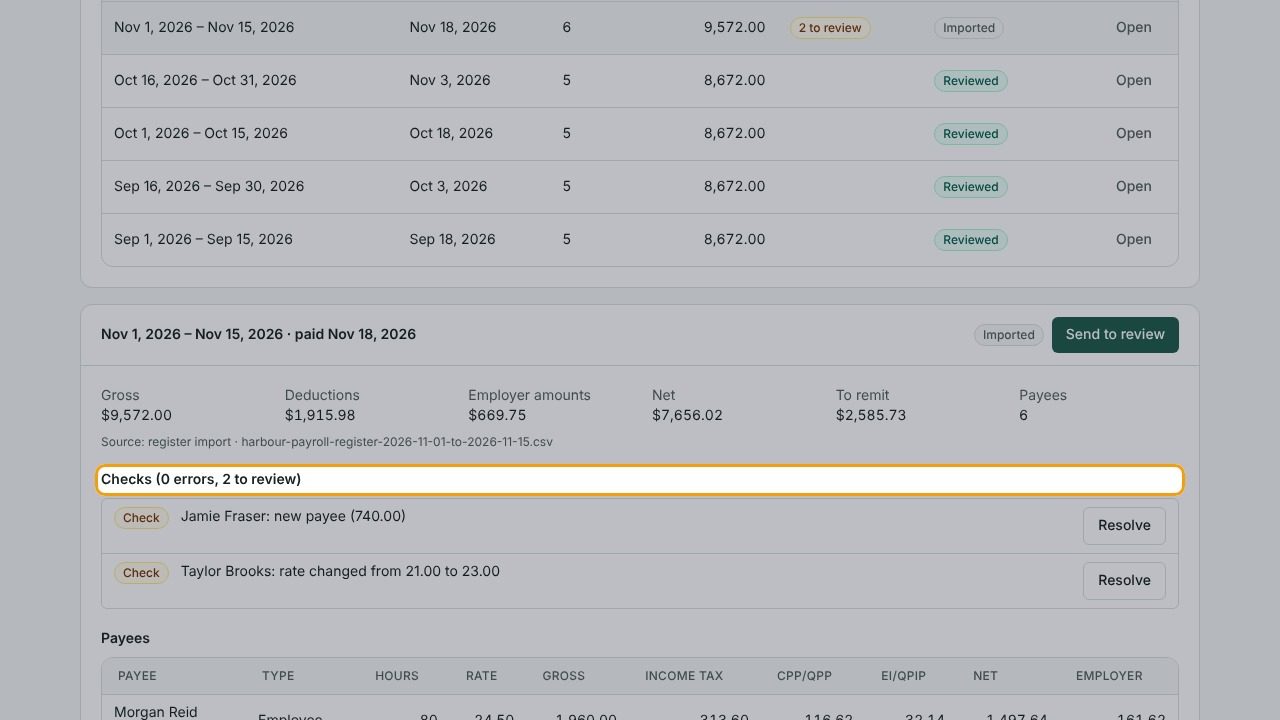
Open a run to see its totals (Gross, Deductions, Employer amounts, Net, To remit), its Payees and its Checks:
- Error: something doesn't add up, such as net pay that isn't gross minus deductions, a negative amount or a payee listed twice.
- Check: something unusual compared with earlier runs, such as a new payee, a rate change, an unusual amount or a payee paid last run but not this one.
For each one, select Resolve, write a Note that explains it (for example, "Raise approved by the owner"), and select Save. Use Reopen if you change your mind.
Send a run to review
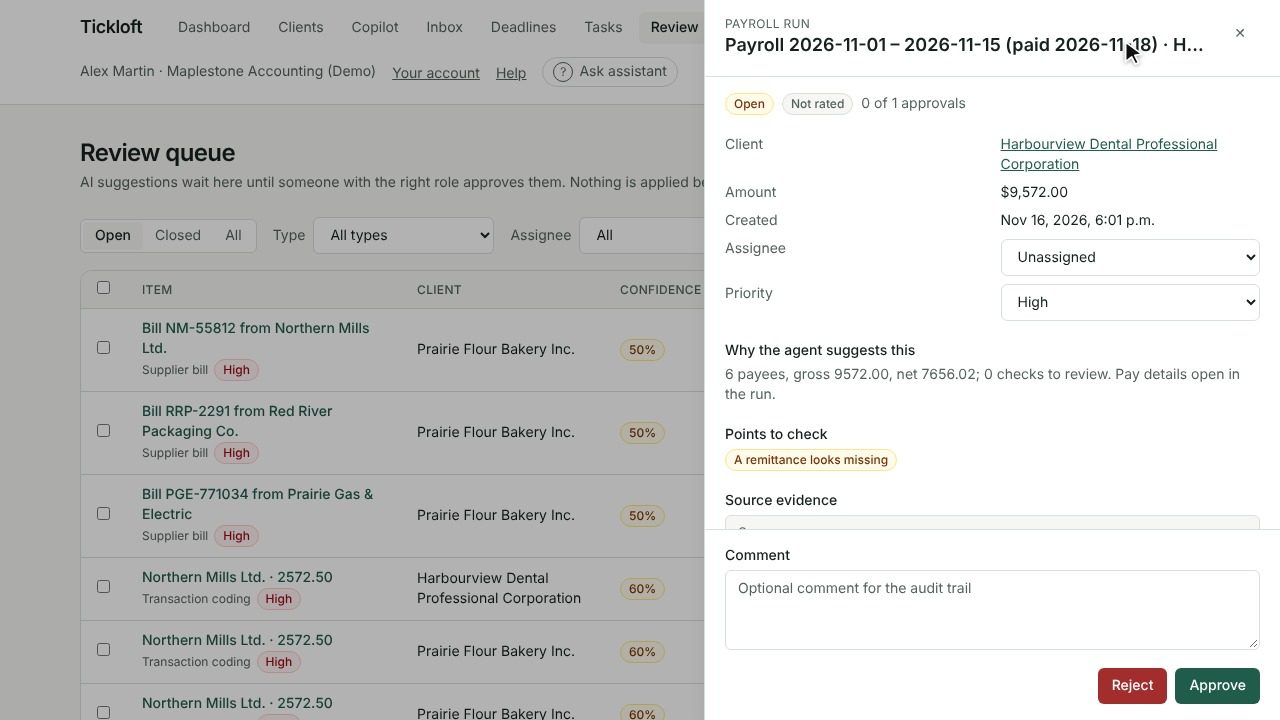
When the errors are cleared, select Send to review. Open errors block sending. The run shows In review; select Open review item to go to Review. Once approved, the run is Reviewed; if rejected, it's Returned for corrections.
Record remittances
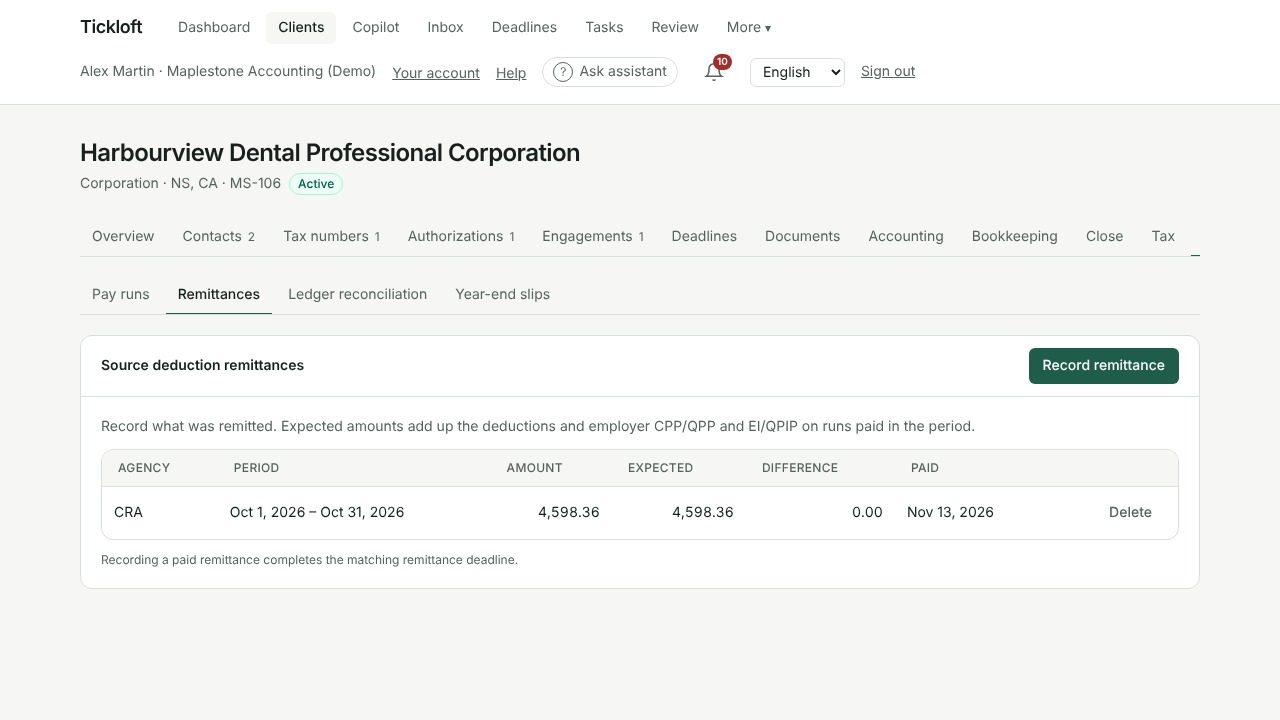
In Remittances, Tickloft shows the expected source deductions for each period, adding up employee deductions and employer CPP/QPP and EI/QPIP from runs paid in the period.
- Select Record remittance.
- Choose the agency (CRA, Revenu Québec, IRS or another), the period, the amount paid and, optionally, a reference.
Remittances not recorded lists periods with no remittance and marks the overdue ones. Recording a paid remittance completes the matching remittance deadline. Any Difference against the expected amount is highlighted.
Reconcile payroll to the ledger
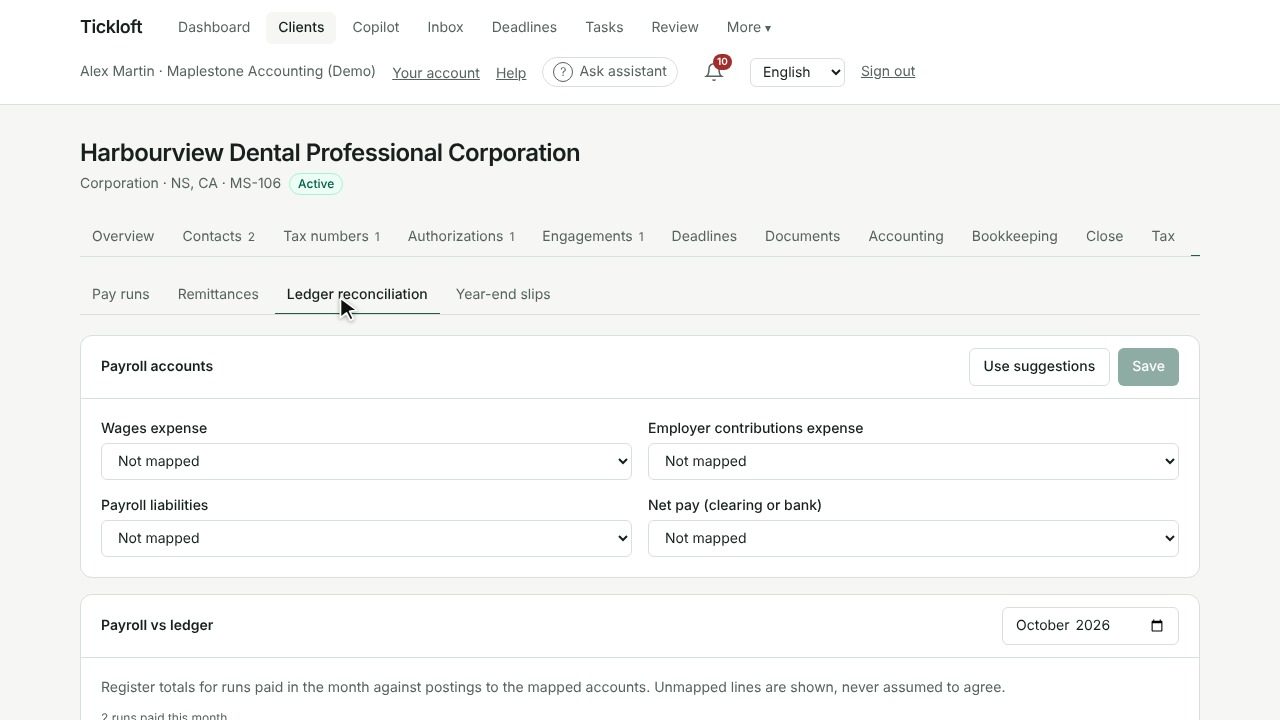
In Ledger reconciliation:
- Under Payroll accounts, map the client's accounts for wages expense, employer contributions expense, payroll liabilities and net pay. Select Use suggestions to start from Tickloft's suggestions.
- Choose a Month to compare register totals with ledger postings.
Each line shows Agrees, Differs or Not mapped. Unmapped lines are shown, never assumed to agree. This needs a QuickBooks Online or Xero connection.
Review year-end slips
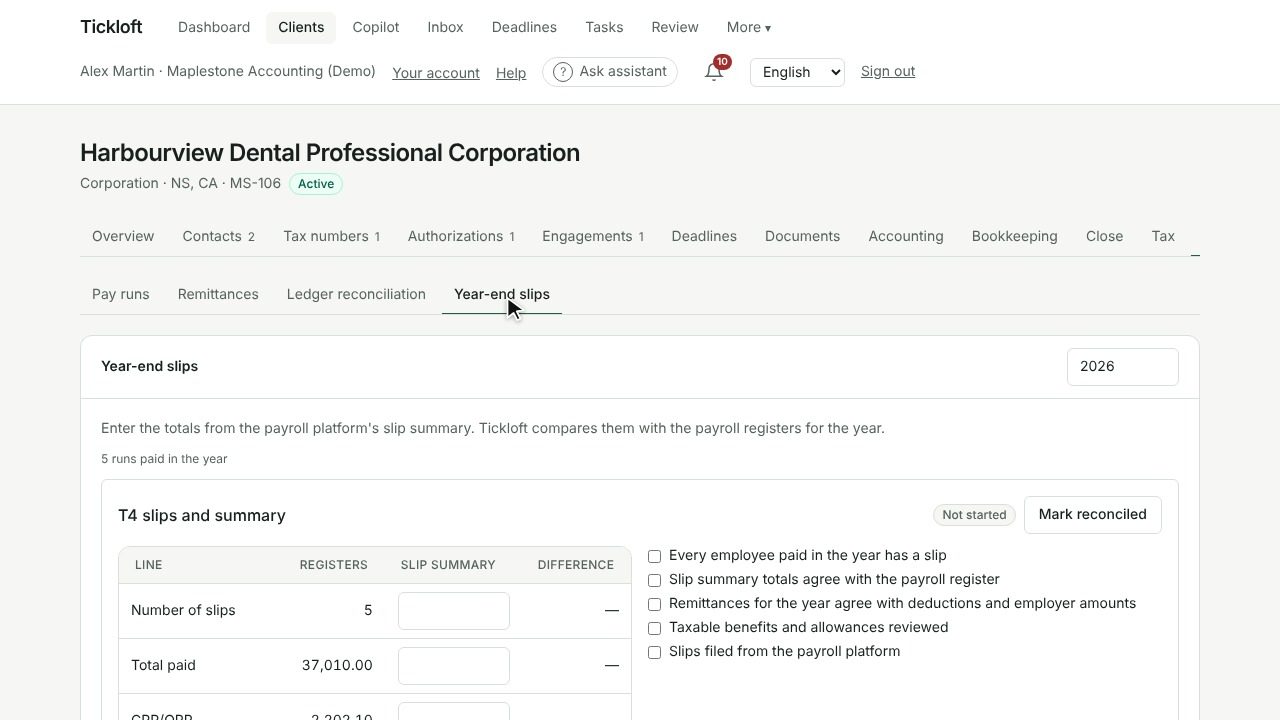
In Year-end slips, choose the Year and enter the totals from the payroll platform's slip summary. Tickloft compares them with the year's registers: number of slips, total paid, CPP/QPP, EI/QPIP and income tax deducted.
- Add an Explanation of differences where totals don't match.
- Select Mark reconciled, then Record as filed once the slips are filed.
- Users with payroll access also see Year-to-date by payee.
Slips are prepared and filed in the payroll platform; Tickloft supports the review.