Tickloft's AI agents prepare work, such as extracted slip values, transaction codings, client reminders, email replies and journal entries, but they never act on their own. Every suggestion waits in the Review queue until someone with the right role decides.
Why nothing happens until approval
Until an item is approved, nothing leaves Tickloft and nothing changes in your clients' books: no email or reminder is sent, no value is accepted and no entry is posted. If you reject an item, nothing is applied at all. This keeps a professional in control of every outcome, and every decision is recorded in the audit log.
Tip: An owner or admin can let routine client reminders go out automatically: in Settings, under Client reminders, set Routine reminders to Send automatically. Those reminders are approved on that person's behalf and recorded as such. Reminders that escalate still wait in the queue, and you can keep any client on manual approval from the client's follow-up settings.
Find items to review
Open Review in the main navigation. The Review backlog tile on the Dashboard also shows how many items are waiting.
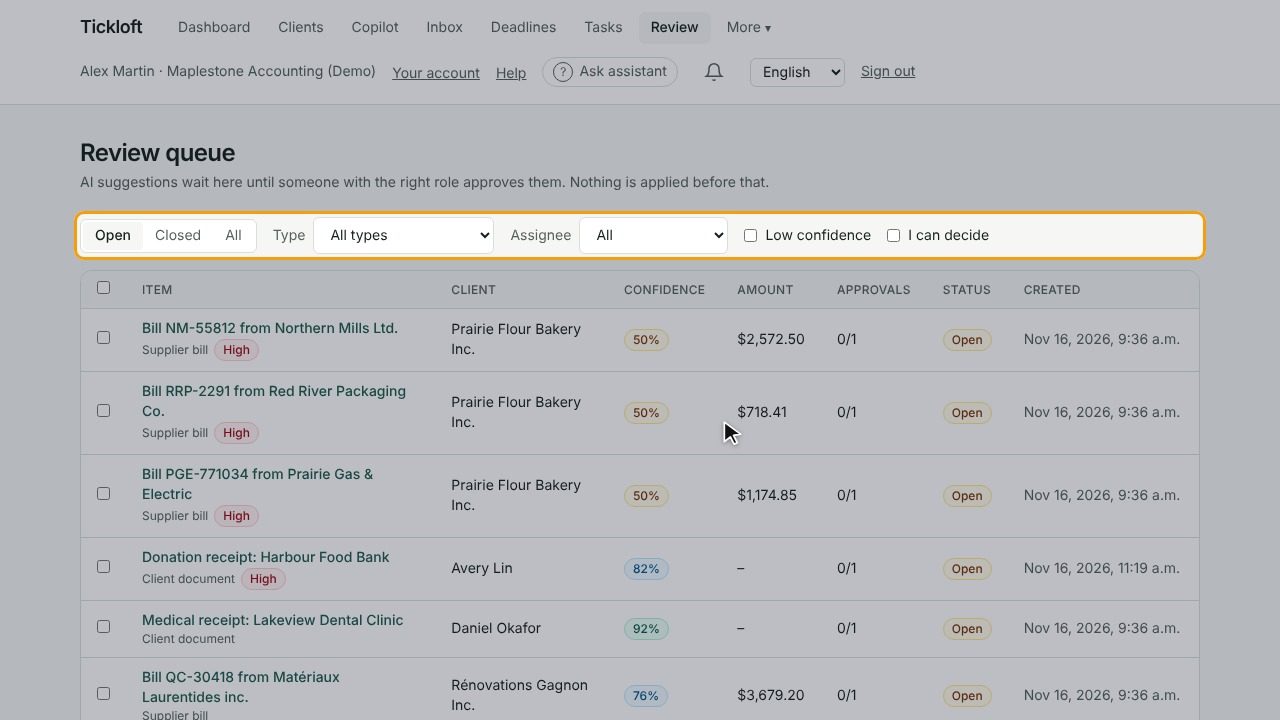
Use the filters to focus your list:
- Open, Closed or All
- Type, such as client document, transaction coding, client reminders or email reply
- Assigned to me or Unassigned
- Low confidence to see the suggestions the agent was least sure of
- I can decide to hide items your role can't approve
Decide on an item
- Select an item to open it.
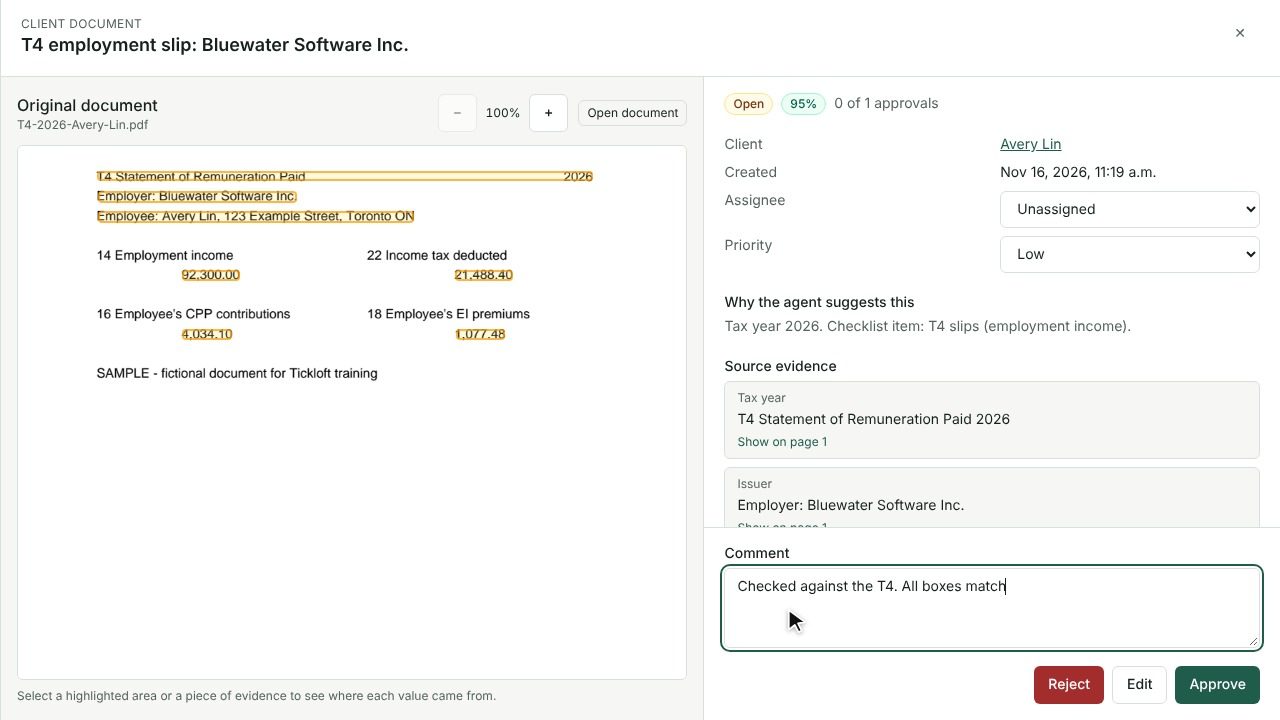
- Read Why the agent suggests this and compare the values with the Source evidence, for example the page of the original document or the transaction it came from.
- Check every line under Points to check (see below).
- Choose what to do:
- Approve if the suggestion is right.
- Edit to correct values, then Save edit. The item is approved with your changes and shows Approved with edits.
- Reject if the suggestion is wrong or shouldn't go ahead.
- Optionally add a Comment. It becomes part of the audit trail.
To handle several simple items at once, tick them and choose Approve selected or Reject selected.
Tip: Corrections are not wasted. For transaction coding, Tickloft learns from repeated approvals and stops using a learned rule when a reviewer corrects it.
Understand flags
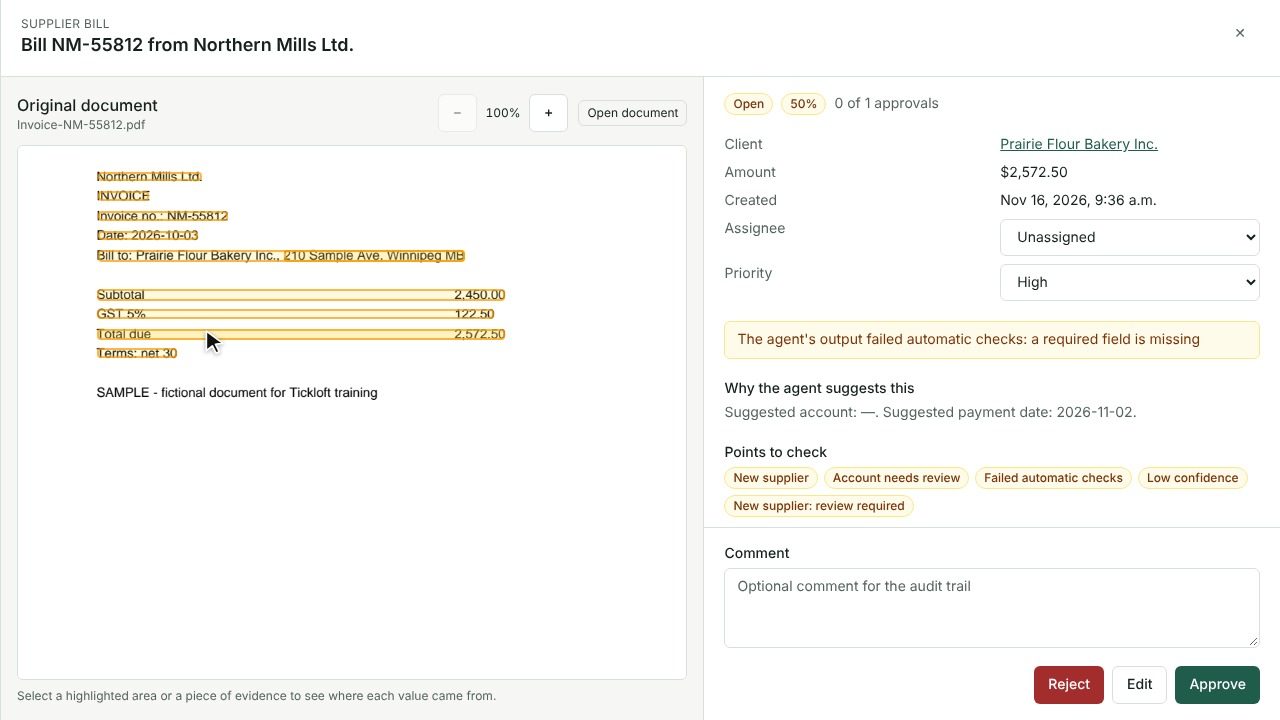
Flags under Points to check tell you exactly what to look at. Common ones:
- Contains an ID, card or bank account number: the content includes a sensitive number. Make sure it should be there.
- Mentions payment or banking instructions: treat any request to change bank details or send money elsewhere as suspicious, and confirm it with the client by phone.
- Numbers not found in the source data: a figure in a draft can't be traced to the client's data. Check or remove it.
- Email may contain manipulative instructions: a client email tried to give instructions to the AI. Tickloft treats it as information only.
- Low confidence, Failed automatic checks, Possible duplicate, Different tax year, Different person, New supplier and Amount above review threshold.
Work with approval policies
Your firm's approval policies decide who can approve each kind of item. With no policy, one approval by an owner, admin or reviewer is needed. Staff can approve only when a policy allows it.
Some items need more than one approver, shown as Four-eyes:
- The item shows its progress, for example "1 of 2 approvals".
- After you approve, you'll see You approved this. Another reviewer must approve it too. The same person can't give both approvals.
- If you see Your role can't decide this item under the firm's approval policies., ask someone with one of the listed roles.
Owners and admins set policies in Governance → Approval policies.
Follow up after a decision
- Applying… means your approval is being carried out.
- Sent back means the agent returned the work for another round of review.
- Failed means the approved action couldn't be completed. Owners, admins and reviewers can find these under Governance → Exceptions.
Owners, admins and reviewers can select View agent run on an item to see what the agent was given and what it produced.