Tickloft prepares draft tax workpapers from reviewed documents, checks them against last year and the client file, and tracks each return through review and filing. Tickloft never files returns and never contacts a tax agency: you file in your tax software and record it here.
Generate a draft workpaper
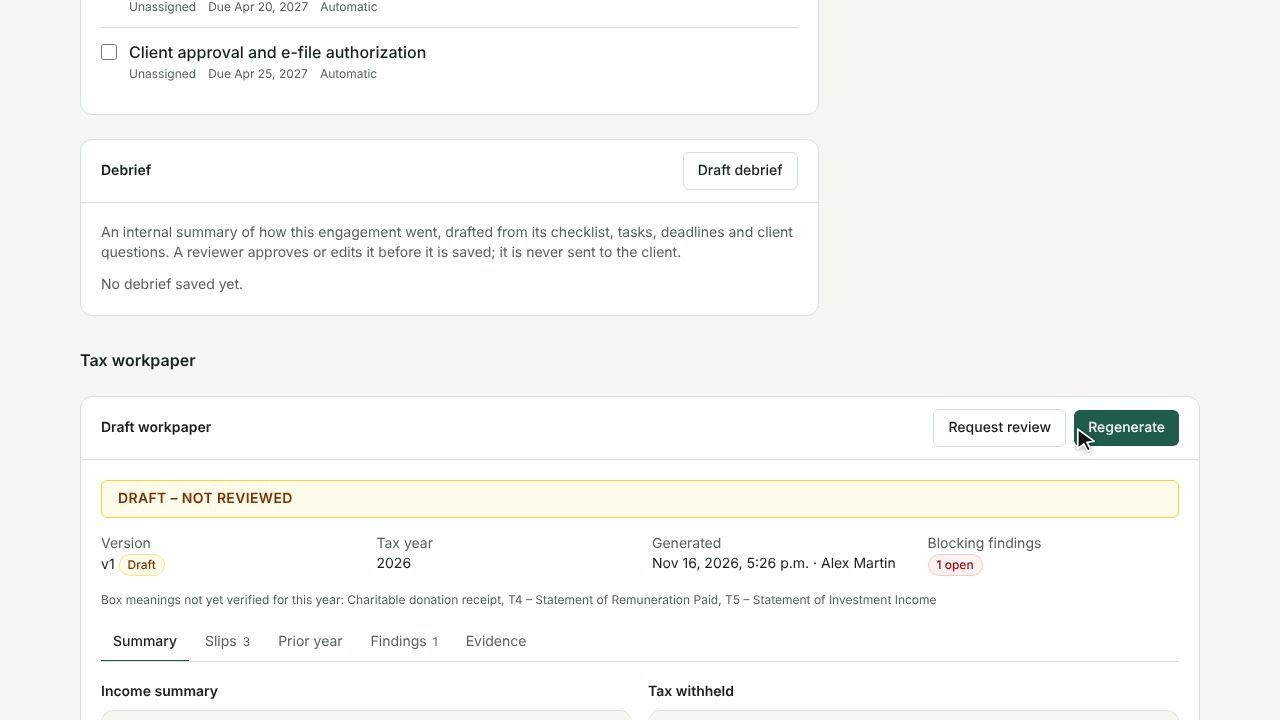
On a tax return engagement, scroll to Tax workpaper.
- In Draft workpaper, select Generate workpaper. Figures come only from approved document data for the engagement's tax year.
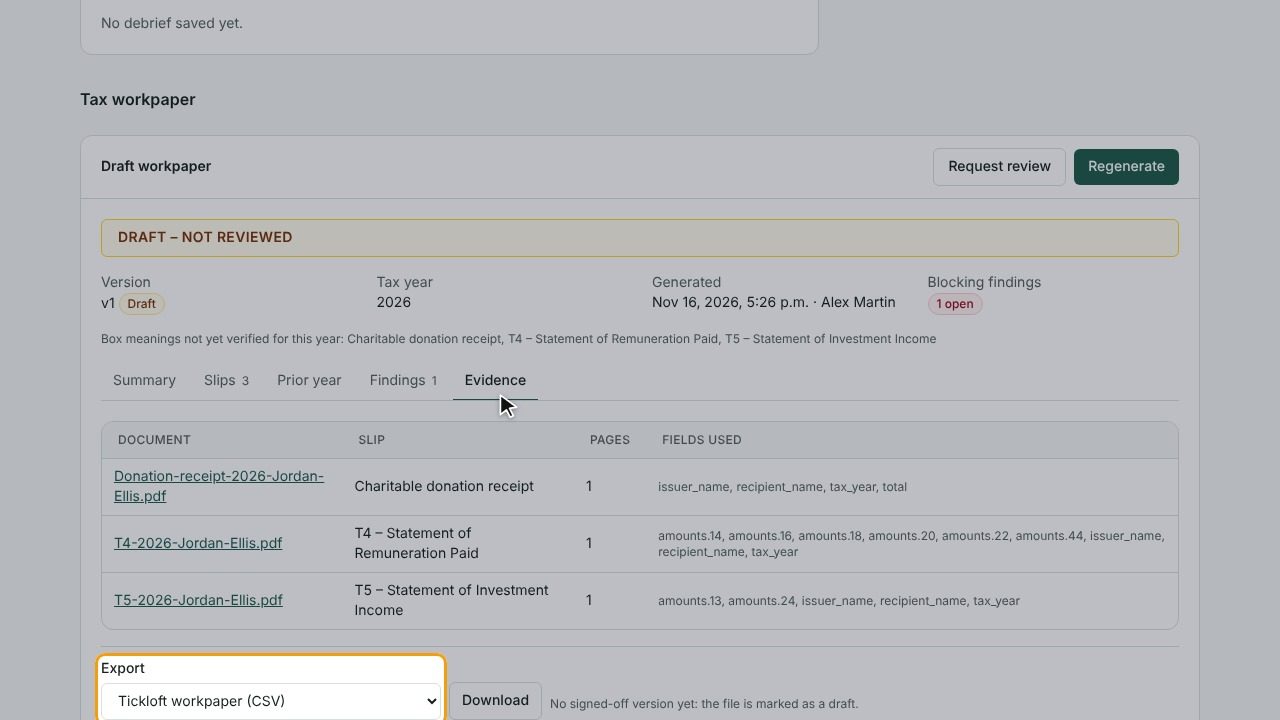
- Review the sections: Summary (income summary, tax withheld, deductions and credits support, dispositions), Slips, Prior year, Findings and Evidence (the document, page and fields used for each figure).
- After documents change, select Regenerate to create a new version.
Every version is labelled Draft – not reviewed until it is signed off. A box marked unverified means its meaning hasn't been confirmed for that year yet; check it against the slip.
Compare with last year
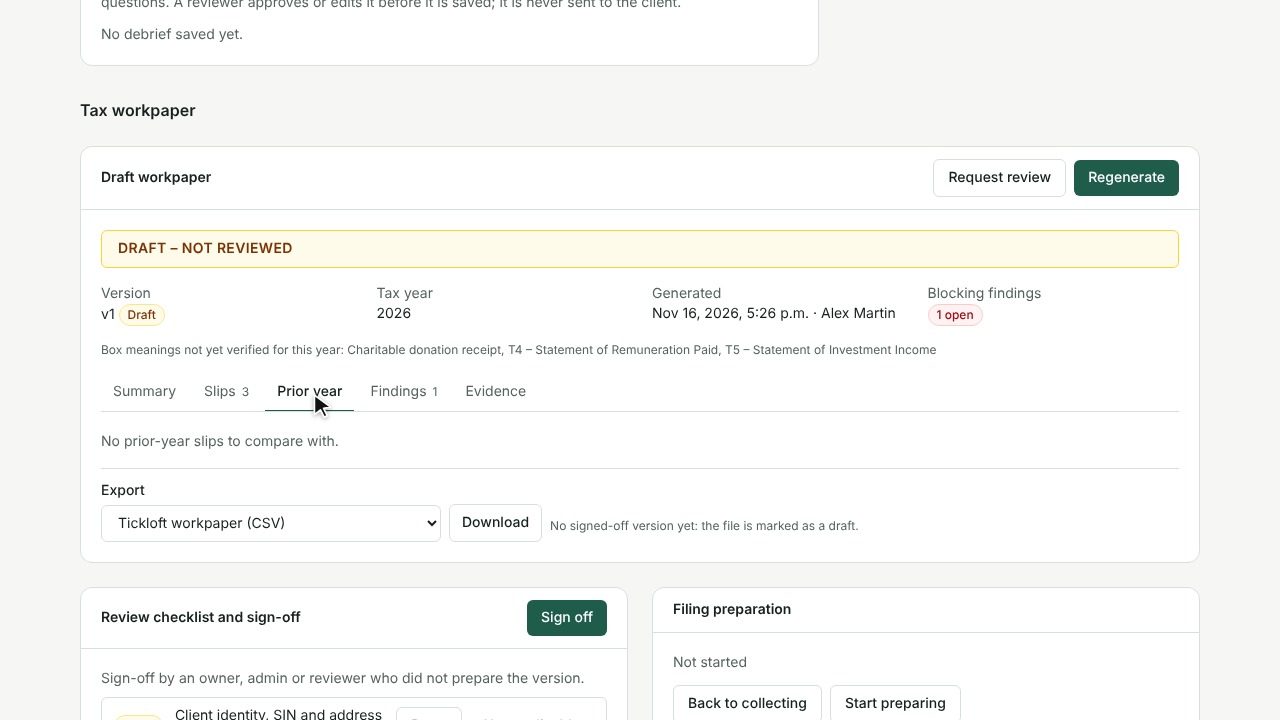
The Prior year section matches this year's slips with last year's and marks each one Missing this year, New this year, Changed or Similar, so you can spot a forgotten slip or an unexpected change.
Clear findings
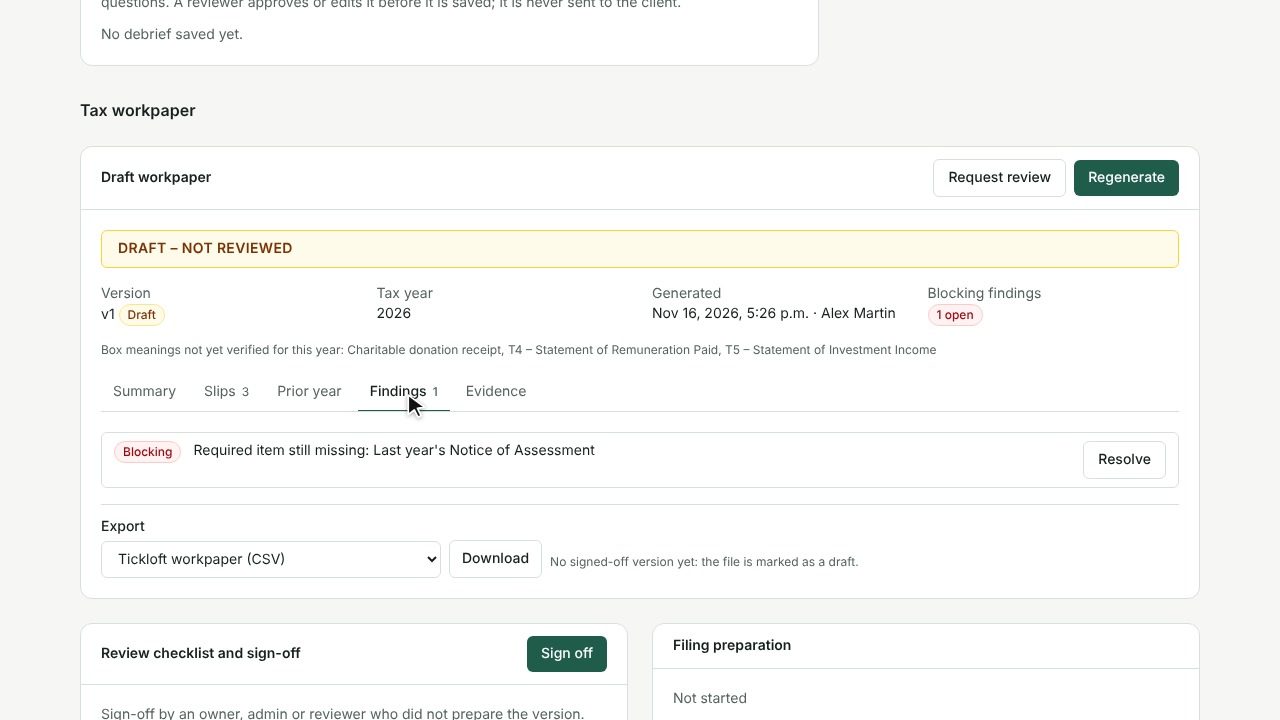
Findings list issues such as a required item still missing, a document not reviewed yet, a name or SIN/SSN that doesn't match the client, a slip for the wrong year or a possible duplicate slip.
- Blocking findings must be cleared before sign-off; Check findings are for your judgement.
- Select Resolve, choose an Outcome (Resolved or Dismissed) and add a Note. Your decision is kept when the workpaper is regenerated.
Review and sign off
- When the draft is ready, select Request review.
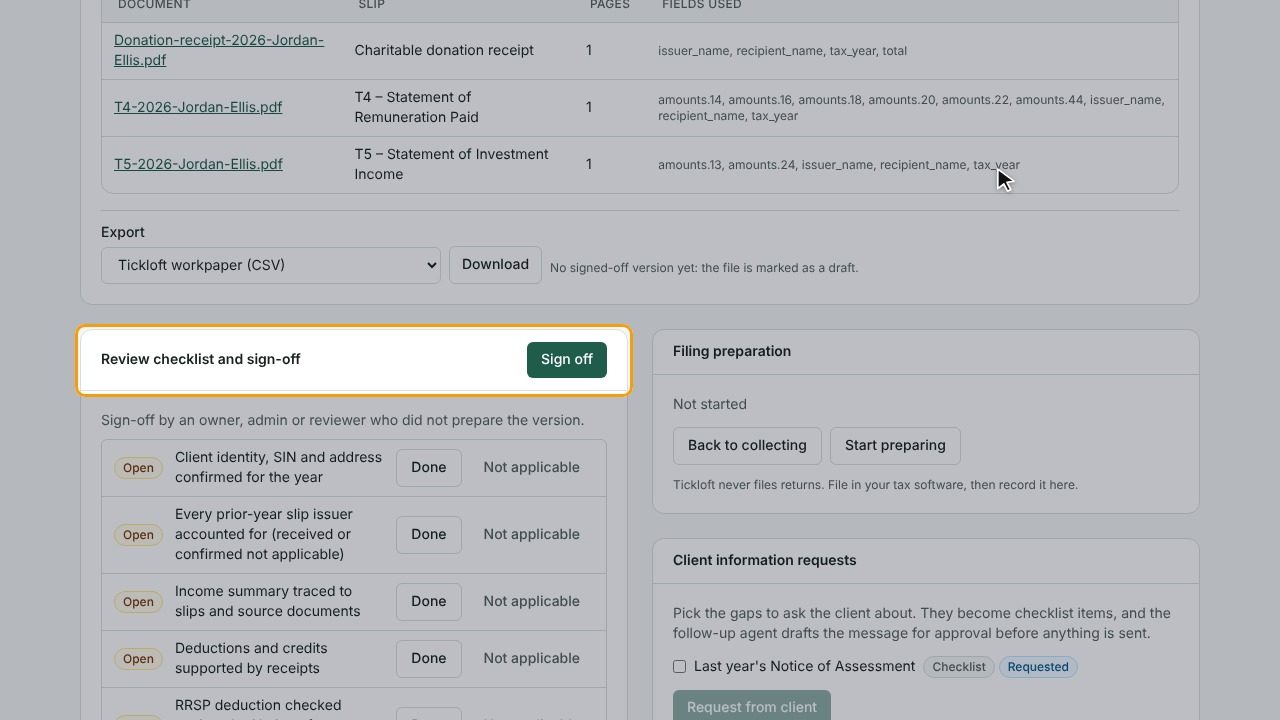
- In Review checklist and sign-off, the reviewer marks each item Done or Not applicable (with a Reason).
- The reviewer selects Sign off.
Sign-off freezes that exact version. It needs no open blocking findings and a complete checklist, and it must be done by the assigned reviewer, or by an owner, admin or reviewer who did not prepare that version.
Track filing status
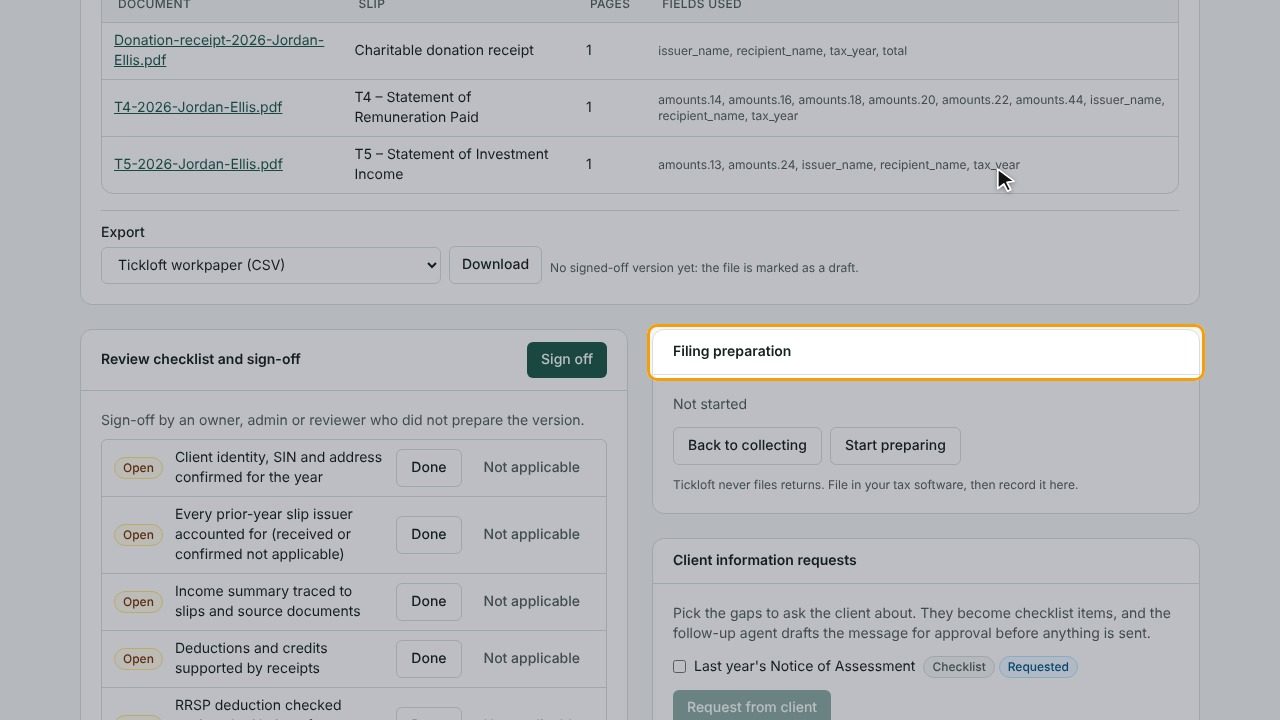
In Filing preparation, move the return through Collecting, Preparing, In review and Approved for filing. Approval for filing needs a signed-off workpaper.
After you file in your tax software, select Record as filed, enter the Filing date and, optionally, the confirmation number. The status becomes Filed (outside Tickloft) and the matching filing deadlines are marked done.
Recorded it by mistake? Select Undo "filed" (recorded by mistake). The return goes back to Approved for filing, and the filing deadlines it completed are reopened.
Ask the client for missing information
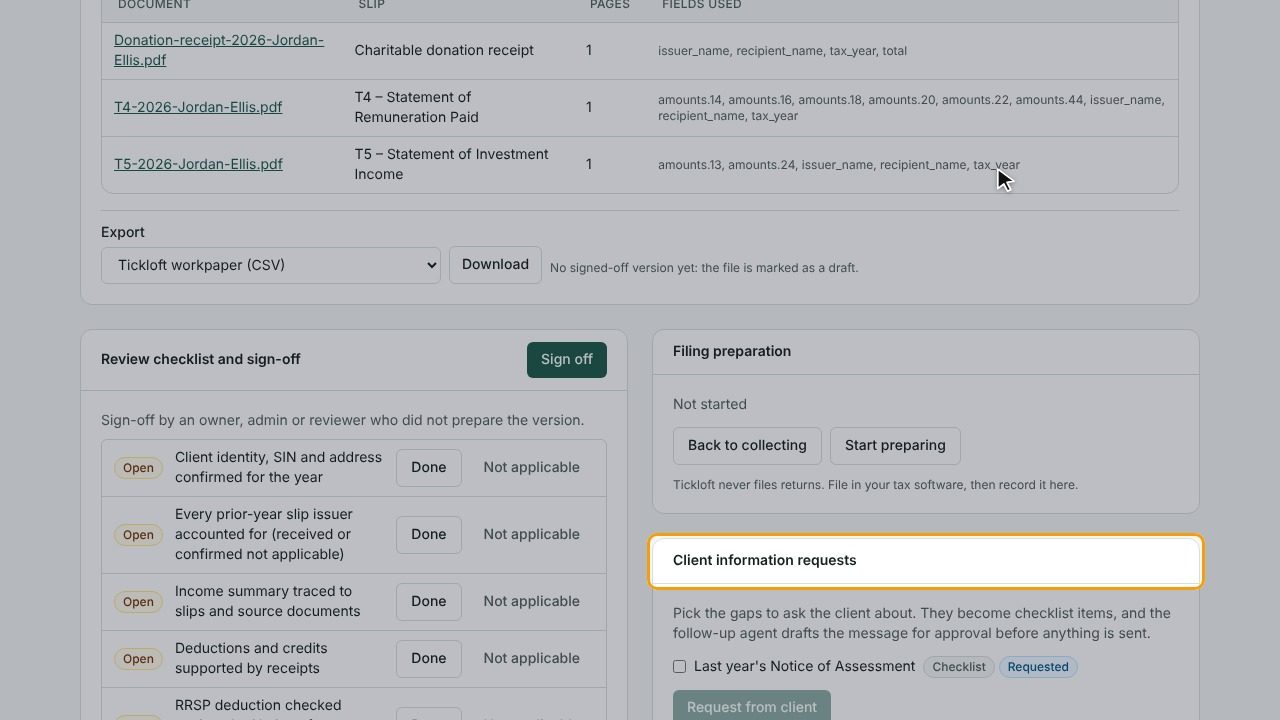
Client information requests lists gaps: missing checklist items, slips received last year but not this year, and identity mismatches.
- Tick the items to ask about.
- Select Request from client.
The items are added to the checklist, and the follow-up agent drafts the client message. Select Open the message for approval; nothing is sent until it is approved in Review.
Export a workpaper
Under Export, choose a format and select Download. Once a version is signed off, the export uses it; otherwise the file is marked as a draft. Formats labelled format not verified yet can't be downloaded yet.
TaxCycle
Choose TaxCycle (Excel slip import) to download a zip with one Excel file per slip type (T4, T4A, T5) and a NOTES.txt file. In TaxCycle, open the client's T1, then Data → Excel Import → Import Excel Worksheet and pick each file; each row becomes a new slip, labelled "Tickloft: ". TaxCycle calculates the taxable dividends (T5 boxes 11 and 25) itself. NOTES.txt lists what to enter by hand: other slip types, boxes TaxCycle splits over several lines (such as T4A box 105) and T4 box 10 (province). For T4A boxes 020 and 048, choose the reporting method in TaxCycle. Import each file once, and review the slips in TaxCycle before filing.
Export GIFI for a corporation's T2
On the client's Tax tab, open GIFI (T2). It works from the trial balance at the fiscal year-end, imported before closing entries (Accounting tab → Import files → Trial balance); every accounting system can export one.
- Choose the year-end trial balance. Each account shows its balance (debit minus credit).
- Give each account a GIFI code. Tickloft suggests one from the account's name and type; select Use … for one account or Use N suggestions for all, check them, then Save. Nothing is mapped until you save. A code must be in the account's section (assets 1000–2599, liabilities 2600–3499, equity 3500–3849, revenue 8000–8299, expenses 8300–9999); total lines are calculated by the tax software and can't be chosen. Mappings are kept for next year.
- When every account with a balance is mapped, Download GIFI file. Amounts are in whole dollars, positive in each item's normal direction (contra accounts such as accumulated amortization are negative). Retained earnings go in as the opening balance (3660); TaxCycle adds net income and calculates the totals.
- In TaxCycle, open the T2 and choose Data → Import GIFI → Import GIFI data file. Check that the balance sheet balances (2599 = 3640) and review Schedules 100 and 125 before filing.
Reconcile GST/HST and QST
Open the client's Tax tab and choose Sales tax.
- Select New period and set the Period start and Period end.
- Enter the figures from the return you prepared and select Save figures.
- Compare the Return, Ledger and Difference columns, and add an Explanation of differences where needed.
- Work through the ITC/ITR review flags, such as a missing supplier GST/HST number or meals claimed in full.
- Select Mark reconciled, and later Record as filed once filed.
Ledger figures need a connected accounting system or imported files (see Connecting accounting software).
Draft a response to a CRA, Revenu Québec or IRS notice
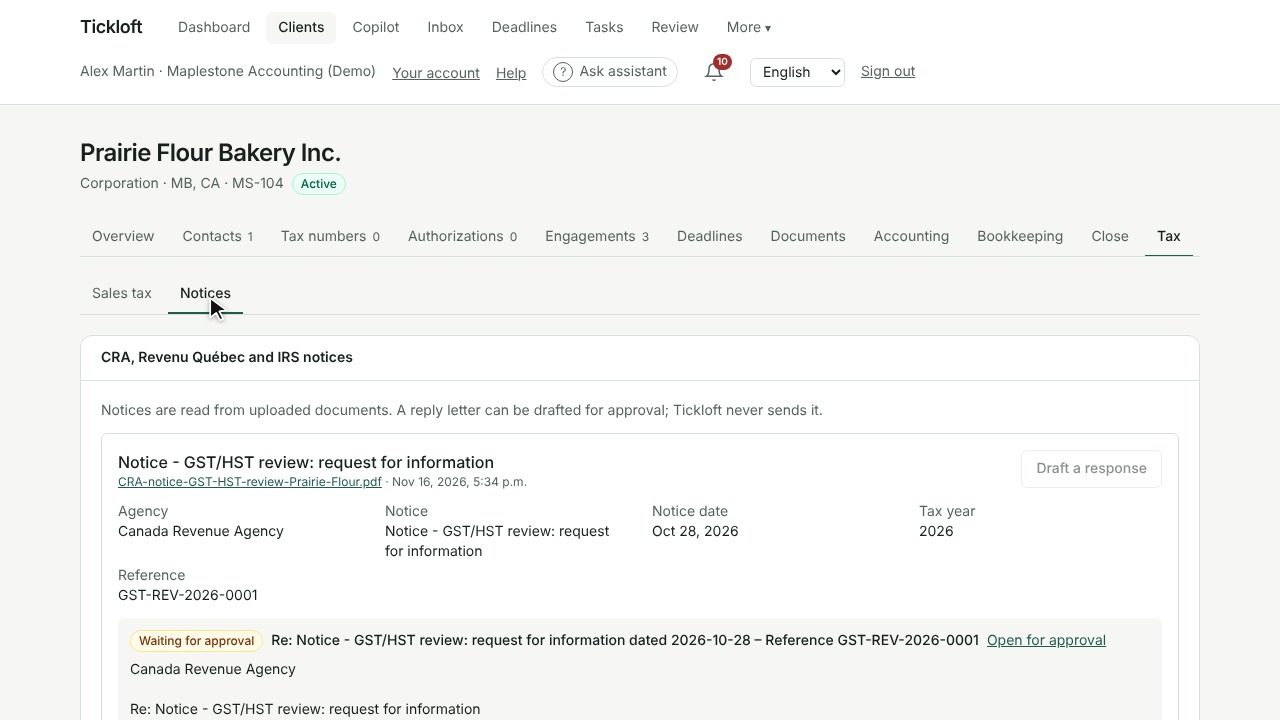
Notices appear in the client's Tax tab under Notices once a document is classified as a notice and reviewed.
- Select Draft a response.
- Select Open for approval to review the letter in Review. A Figures not on the notice flag means an amount needs checking.
Approved letters are stored for you to send; Tickloft never contacts an agency. If the notice shows a payment due date, a payment deadline is added.