Most problems in Tickloft have a quick fix. Find your situation below; if it isn't listed or the fix doesn't work, see "Get more help" at the end.
I can't sign in
- Check that you're on the staff sign-in page, Sign in to Tickloft, at /login. The client portal has its own sign-in page, and staff accounts don't work there.
- Check that Caps Lock is off and that you're using the email address you were invited with.
- If you see "Email or password is incorrect", type your password again carefully.
- If you see "Too many attempts. Wait 15 minutes and try again", wait 15 minutes before trying again. More attempts won't help.
- If your firm uses single sign-on, enter your work email and choose Sign in with single sign-on.
If you see "Your session has expired. Please sign in again", simply sign in again.
My verification code doesn't work, or I lost my phone
If you see "That code didn't work", enter the newest code from your authenticator app; each code is valid only briefly.
If you lost or replaced the phone with your authenticator app, or forgot your password, ask an owner or admin at your firm for a reset link (see Resetting a password or two-step verification). Open the link, choose a new password if asked, and scan the new QR code with your new phone. If you are the firm's only owner, contact Tickloft support.
My invitation link doesn't work
An invitation link works once and expires after 7 days.
- "This invitation has expired" or "This invitation was cancelled": ask your firm administrator for a new one.
- "This invitation has already been used": your account already exists. Sign in at /login.
A document is stuck processing
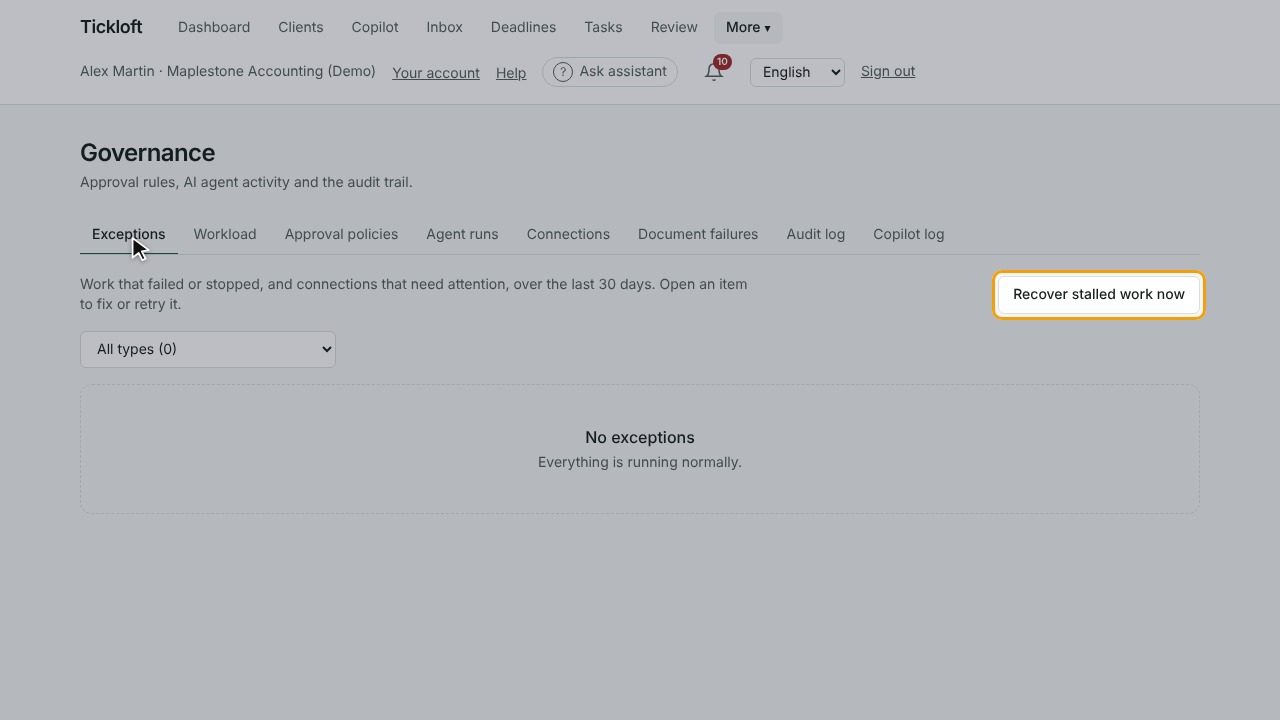
Uploaded documents show Received, then Processing, then Awaiting review. Processing usually takes a few minutes. Temporary problems are retried automatically. If a document stays in Processing for more than about 15 minutes (for example, during maintenance), Tickloft retries it on its own; an owner or admin can also select Recover stalled work now under More → Governance → Exceptions.
If a document shows Failed:
- Open the document.
- Select Reprocess. Owners, admins and reviewers can do this; staff can ask one of them.
If the file failed the security scan, it's quarantined and can't be reprocessed. Ask the client for a clean copy. Supported file types are PDF, JPEG, PNG, TIFF and WebP.
QuickBooks Online or Xero isn't available or has expired
- If the connect button shows "Not set up for your firm yet", accounting connections aren't available for your firm. Contact Tickloft support.
- If a client's connection shows Needs reconnecting, or a notice says access expires soon, open the client's Accounting tab and select the connect button for QuickBooks Online or Xero again. Owners, admins and reviewers can do this. Data already synced is kept.
The same applies to a mailbox: if the Inbox says a mailbox needs to be reconnected, select Open mailboxes and connect it again.
I can't approve a review item
- "Your role can't decide this item under the firm's approval policies": the item shows who can decide it under Can be decided by. Ask one of them, or ask an owner or admin to review the firm's Approval policies in Governance.
- "You approved this. Another reviewer must approve it too": the item needs more than one approver (four-eyes review). Another person must approve it.
- Data deletions and retention purges can only be approved by an owner.
Tip: Use the I can decide filter in Review to list only the items you're allowed to decide.
I can't find a client or get "You don't have permission"
The client may be restricted to assigned staff. Ask an owner, admin or reviewer to give you access in the client's Team access tab.
A feature is paused or a limit is reached
If you see "Your plan's limit is reached", "This feature isn't included in your plan" or "Your subscription is inactive", your records are still available. Let your firm owner know; they can change the plan in Firm settings under Plan and billing.
Get more help
- Ask the Help assistant: describe what you're trying to do and what you see on screen.
- Contact Tickloft support using the contact email on the Tickloft website. Include the page you were on and the exact message you saw. Never send passwords or verification codes.